 Tech Resurrection

Table of Contents
- Start Here: What a Random Freeze Usually Means
- My Computer Is Frozen and Ctrl+Alt+Delete Is Not Working
- How to See What Caused Your PC to Freeze
- Common Causes of Freezes and What to Check for Each
- When Your PC Freezes After a Few Minutes or Randomly Needs a Restart
- Booking Help for a PC That Keeps Freezing
- Frequently Asked Questions
Last Updated: November 4, 2026
Start Here: What a Random Freeze Usually Means
When your PC freezes randomly, the screen stops responding and you can't move the mouse or type. Often the cause is something simple, like a program using too much memory or a driver that needs an update.
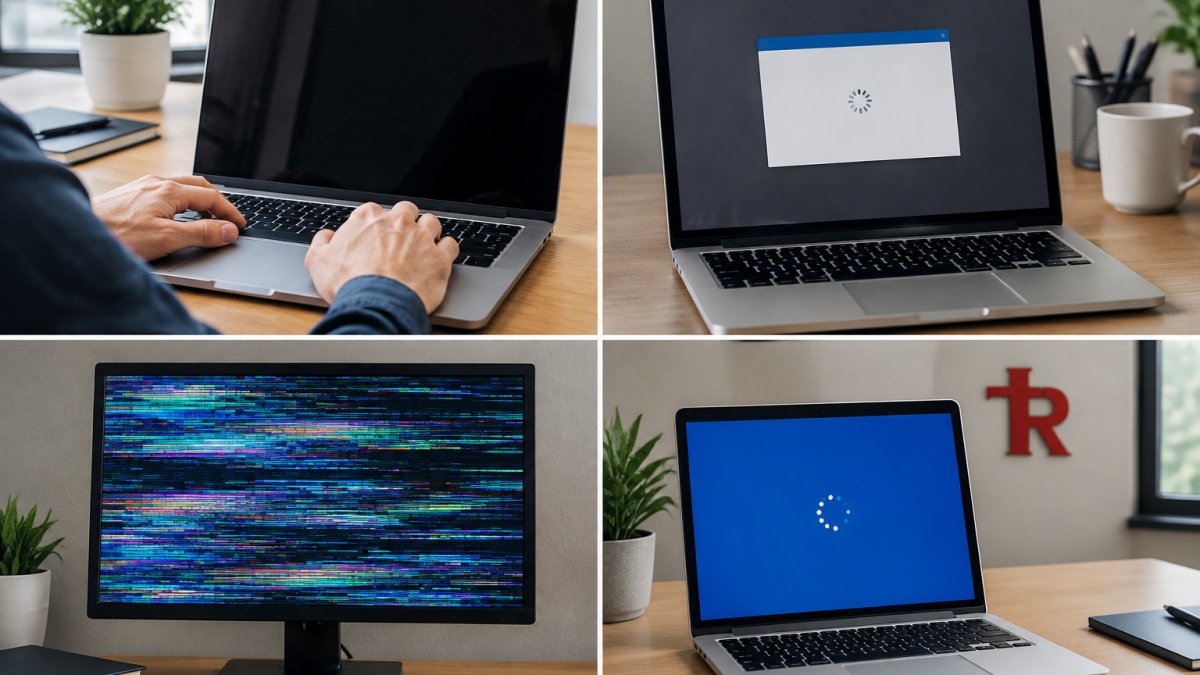
The single most useful first step is to figure out which kind of freeze you're having. "My PC froze" covers at least four different problems, and each one points to different causes. Before you change any settings, match what you saw to one of these:
- Full system hang. The screen is frozen, the mouse won't move, the keyboard does nothing, and the clock in the corner stops changing. Nothing recovers on its own. This usually points to a hardware problem, a driver crash, or the whole system running out of memory.
- App-only freeze. One program stops responding and the window may say "Not responding," but you can still move the mouse, click other windows, and open the Start menu. This is usually that one program, not the PC. Closing it through Task Manager often clears it.
- Display-driver reset. The screen goes black for a second or two, sometimes flashes, then comes back, often with a message that the display driver stopped responding and recovered. Windows 11 logs this as an event, and it usually points to the graphics driver or the graphics card.
- Automatic restart or shutdown. The PC doesn't freeze at all, it suddenly reboots or powers off. That is a different problem from a freeze and often points to heat, a power supply issue, or a stop error (the blue screen).
Write down which one you saw, plus the date and time. That one note makes every step below faster, and it's the same information a repair technician will ask for first.
Here is the safe order to work in. Start with quick checks, then move to tests that take more time. Change one thing at a time and use the PC normally for a day or two before changing something else, if you change five settings at once, you won't know which one helped.
If you're worried about losing files, back them up before you change anything. A USB drive or an external hard drive works well for this. If the freezes are frequent, back up first and troubleshoot second.
What a freeze often points to:
- A program that is stuck or using too much memory
- An outdated or conflicting driver, especially for graphics or network
- Overheating, which can cause the computer to shut down or lock up
- Low free storage space on the main drive
- Malware running in the background
- A failing stick of memory or a drive that is starting to go bad
My Computer Is Frozen and Ctrl+Alt+Delete Is Not Working
If the whole screen is locked, don't panic. Hold the power button for about 10 seconds until the PC turns off. Wait a minute, then turn it back on.
Before you do this, try a few things first. Press Ctrl+Shift+Esc to open Task Manager. If it opens, you can end the program that is stuck. If nothing responds at all, the forced restart is the safest option.
Forcing a restart can lose unsaved work. That's why it's smart to save your work often, and to turn on automatic saving in the apps you use most.
How to See What Caused Your PC to Freeze
Windows 11 keeps a record of problems. If you want a deeper, professional look at what is causing the freezes, you can learn what a computer diagnostic test includes and how to book one. You can look at it to find patterns.
- Press the Windows key and type Reliability Monitor, then press Enter.
- Look at the timeline. Red X marks show crashes and failures.
- Click a red X to see the details.
For more detail, open Event Viewer from the Start menu. Look under Windows Logs, then System, for errors that match the time of each freeze.
On a Mac, open Console from the Utilities folder. Look for crash reports or messages that repeat around the time the freeze happened (View reports in Console on Mac).
Common Causes of Freezes and What to Check for Each
Freezes usually have a few common causes. Here is what to look at for each one.
Outdated or Conflicting Drivers
Drivers are the small programs that help your hardware work with Windows. Old or mismatched drivers are a common cause of freezes.
- Open Device Manager and check for yellow warning marks.
- Update the graphics driver from the maker's official website.
- Install any pending Windows Update, since updates often include driver fixes (Automatically get recommended and updated hardware drivers).
Avoid driver updater programs. Many of them are junk, so stick with Windows Update and the manufacturer's website.
Overheating, Low Memory, and Full Storage
Three everyday problems can cause freezes: heat, memory, and storage. If you're wondering whether more memory would actually help your slow or freezing PC, the section below explains the signs to check first.
- Overheating: Check that the vents are clear of dust. A laptop on a bed or couch can block airflow.
- Low memory: Open Task Manager and look at the Memory column. If it stays near full, close unused programs.
- Full storage: Go to Settings, then System, then Storage, and remove files you no longer need.
Mac users can check the same things in Activity Monitor and Storage settings.
Most random freezes trace back to a handful of causes. The table below matches each one to what to check.
| Cause | What to check | Where to look |
|---|---|---|
| Outdated or conflicting drivers | Yellow warning marks | Device Manager |
| Graphics driver | Update from the maker's website | Manufacturer's official site |
| Pending updates | Install them, since they often include driver fixes | Windows Update |
| Overheating | Dust-clogged vents | Vents and airflow |
| Low memory | Memory column stays near full | Task Manager |
| Full storage | Files you no longer need | Settings, System, Storage |
When Your PC Freezes After a Few Minutes or Randomly Needs a Restart
A freeze that happens after a few minutes of use often points to heat or a program that uses too many resources. A freeze that happens at random, with no pattern, can point to a failing part.
Try these steps in order:
- Restart and see if the problem comes back.
- Check Task Manager while you work to see which program uses the most resources.
- Note what you were doing right before each freeze.
- Run Windows Security to scan for malware.
If the freezes keep happening after these steps, it's time to get help. Hardware faults can be hard to pin down, and a professional can run tests that are safe for your files.
Booking Help for a PC That Keeps Freezing
If you've tried these steps and the freezes continue, Tech Resurrection can help. Daniel Arfsten offers in-home service across Metro Milwaukee. Pricing depends on the job, so contact Tech Resurrection for current rates or a quote. No repair work is done without your approval.
Before you call, write down when the freezes happen and what you were doing. That information makes the visit faster. You can also browse our computer repair tips and guides to learn more before you book.
Frequently Asked Questions
How do I fix my PC randomly freezing?
Start with quick checks that cost nothing: restart the computer, install pending Windows updates, and close programs you do not need. Then check Task Manager for any program using a lot of CPU or memory during a freeze. Make sure you have a current backup before changing drivers or running system repairs. If freezes continue after these steps, the cause may be a driver conflict, overheating, or failing hardware, and a professional diagnostic can narrow it down. Results vary from one computer to another, so the steps that help one machine may not help yours.
How do you fix a frozen PC?
If the screen is stuck, first wait a few minutes in case it recovers. If it does not, hold the power button until the computer turns off, then start it again. Once it is running, save your work often and watch for patterns, such as freezing during a specific program or after waking from sleep. Before any repair that could affect your files, back up important documents to an external drive or cloud storage.
Can overheating cause a computer to freeze?
Yes, overheating is a common reason a PC freezes, especially during gaming, video editing, or heavy multitasking. Many computers slow down or shut off to protect their parts when they get too hot. Check that the vents and fans are not blocked by dust or nearby objects, and keep the laptop on a hard surface rather than a bed or couch. If the freezes happen during heavy use and the computer feels very hot, have it looked at before the problem gets worse.
How do I see what caused my PC to freeze?
Windows 11 includes a tool called Reliability Monitor that shows a timeline of problems, including crashes and failed updates. To open it, search for Reliability Monitor in the Start menu. Red X marks point to events worth investigating. Event Viewer, found by searching for it in the Start menu, can show more detail. These tools will not always name the exact cause, but they often show a pattern that points to the right next step.
