 Tech Resurrection
Quick Summary
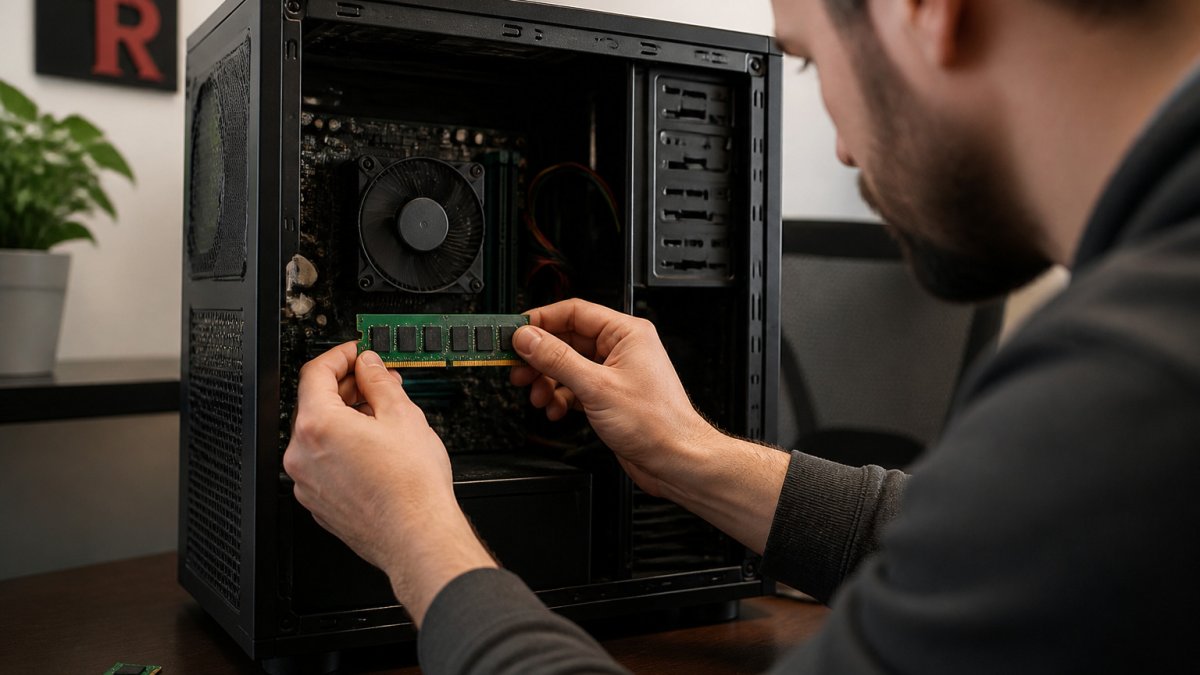
Upgrading RAM is worth it only when memory is the real bottleneck, meaning your computer regularly runs out of workspace. Check memory use in Task Manager on Windows 11 or Activity Monitor on a Mac during normal work before spending any money. If memory stays low, extra RAM will not noticeably speed things up.
- Watch Task Manager's Memory tab during the slow tasks, not just once.
- Usage above roughly 85 to 90 percent during slowdowns suggests memory is limiting performance.
- Disable unfamiliar startup programs with high Startup impact before buying anything.
- An SSD usually helps more with slow startup and file loading than extra RAM does.
- Many thin laptops have soldered memory, so check your model's specifications first.
Table of Contents
- Why a Slow Computer Doesn't Always Mean It Needs More RAM
- How to Check RAM Usage in Windows 11
- How to Check Memory Usage on Mac
- When Adding RAM Helps, and When It Won't
- RAM vs SSD Upgrade for a Slow Computer
- How Much RAM Do You Need for Everyday Use?
- Booking Your Next Step With Tech Resurrection
- Frequently Asked Questions
Last Updated: November 2, 2026
Slow computers frustrate almost everyone, and the first answer many people reach for is buying more memory. Tech Resurrection, a computer repair service in Franklin, Wisconsin, serving Metro Milwaukee, hears this question often. The honest answer to whether upgrading RAM is worth it depends on what is actually slowing the machine. More memory can prevent slowdowns, but it does not always make a computer faster. This guide walks through how to tell the difference, using built-in tools on Windows 11 and macOS.
Why a Slow Computer Doesn't Always Mean It Needs More RAM
RAM, short for random access memory, is the short-term workspace your computer uses for open programs and browser tabs (All about computer memory). When that workspace fills up, the system moves data to slower storage, and everything feels sluggish. That is one cause of slowness, but far from the only one.
Other common causes include a full startup list, a nearly full hard drive, malware running in the background, and an old hard disk that is slow to read files.
How to Check RAM Usage in Windows 11
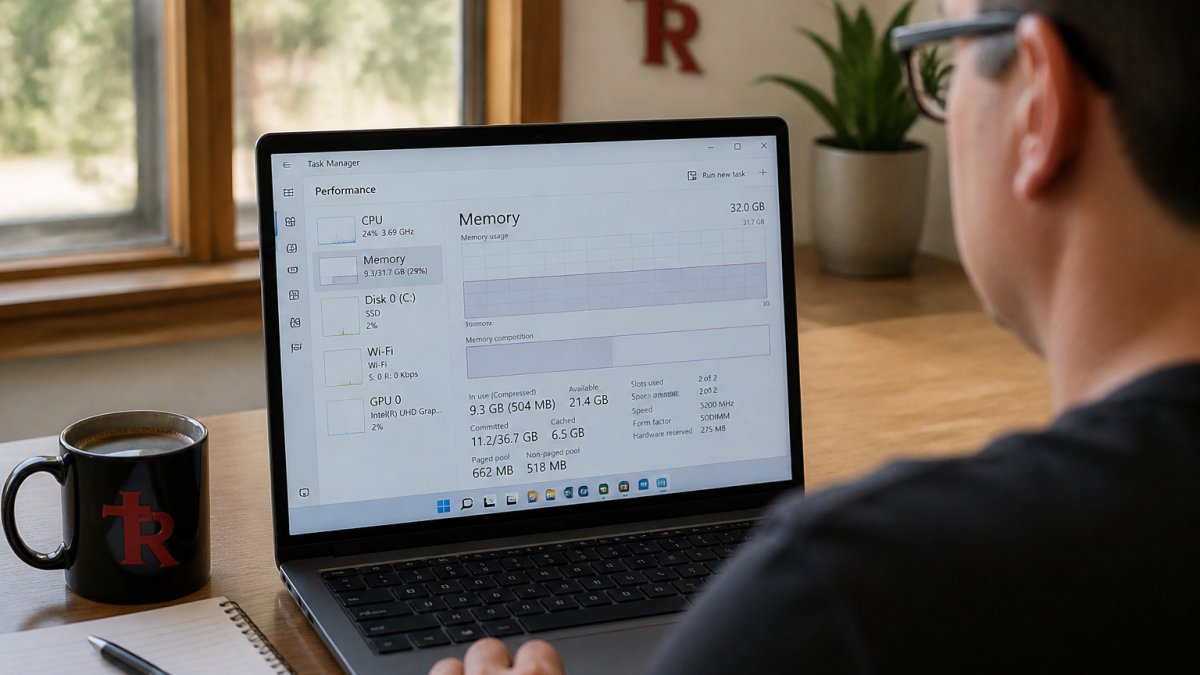
Windows includes Task Manager, which shows memory use in real time. The goal here is not to glance at a number once. It is to catch the computer in the act of slowing down, so you can see whether memory is the cause.
- Press Ctrl + Shift + Esc to open Task Manager.
- Select More details if you see a short window.
- Click the Performance tab, then select Memory.
- Leave Task Manager open and go do the work that feels slow, the same browser tabs, the same spreadsheet, the same video call.
- When the computer starts to drag, switch back to Task Manager and read the percentage in use and the In use (Compressed) figure under the graph.
A single high reading proves little. What matters is the pattern during your normal workload. If memory use climbs above roughly 85 to 90 percent and stays there while the machine feels sluggish, memory may be limiting performance.
Run a Before-and-After Test
This is the step most guides skip, and it is the one that saves you money.
Watch out: closing programs in Task Manager to "free up" memory can discard unsaved work, so save your files before you end any task. If you are not sure whether the slowdown is a diagnostic question, learn how a professional computer diagnostic test works and what it covers.
Check What Is Eating Memory at Startup
Click the Startup apps tab in Task Manager. Many programs launch automatically when you sign in and quietly hold memory the whole time. The Startup impact column rates each one. For anything you do not recognize or do not need running immediately, right-click and choose Disable. This is safe and reversible, it stops the program from launching at sign-in but does not uninstall it, and you can re-enable it the same way. Trimming a long startup list is free and sometimes removes the need for a RAM purchase altogether.
Note Your Installed Capacity and Slots
On the same Performance > Memory screen, look at the top-right corner. Windows lists the total installed memory and, below it, the number of slots in use (for example, "2 of 2"). That tells you whether you can add a stick or would have to replace existing ones. If the screen shows a single slot in use, adding a matching second stick can help twice over: more capacity and, often, better memory performance from running in dual-channel mode.
Here is how the two main memory checks compare on each system, using only what the article describes.
| System | Tool | What to look for |
|---|---|---|
| Windows 11 | Task Manager, Performance > Memory | Usage above roughly 85 to 90 percent during slowdowns |
| Mac | Activity Monitor, Memory tab | Memory Pressure graph: green is fine, yellow or red is tight |
| Windows 11 | Startup apps tab | Disable unfamiliar programs with high Startup impact |
How to Check Memory Usage on Mac
macOS uses a tool called Activity Monitor.
- Open Finder, go to Applications > Utilities, and open Activity Monitor.
- Click the Memory tab.
- Look at the Memory Pressure graph at the bottom. A green graph means memory is fine. Yellow or red means the Mac is running short and relying heavily on swap, which is disk space used as overflow memory.
- Sort by the Memory column to see which apps use the most.
Occasional yellow during heavy work is normal. Constant red while doing light tasks is a sign that memory is tight.
When Adding RAM Helps, and When It Won't
Adding RAM tends to help when your computer regularly runs out of memory. Symptoms include frozen windows when switching between programs, slowdowns when many browser tabs are open, and heavy disk activity that never seems to settle.
It usually will not help when the machine has enough memory already and the slowness comes from something else. Typical examples include a nearly full drive, too many startup programs, or malware.
Many laptops also have soldered memory that cannot be upgraded at all, so check the model's specifications before buying.
Capacity Versus Speed: What Actually Changes
Memory has two main specifications. Capacity is how much data it can hold, measured in gigabytes. Speed is how quickly data moves in and out, measured in megahertz. Most people benefit far more from capacity. Dell's support guidance notes that faster RAM can increase the rate at which memory transfers information, but this rarely fixes a system that lacks memory altogether. Memory configuration also matters. A single stick can run in single-channel mode, and installing a matching pair often gives better performance. Chasing a faster speed rating before fixing a capacity shortage usually wastes money.
RAM vs SSD Upgrade for a Slow Computer
These two upgrades fix different problems, and mixing them up is the most common way people waste money on a slow machine. The short version: RAM addresses running out of workspace, and a solid-state drive (SSD) addresses slow storage. Match the upgrade to the symptom.
Match the Symptom to the Upgrade
- Slow to start up, slow to open a single file, slow to launch one program: storage is usually the bottleneck. An SSD replaces the older spinning hard disk and reads files far faster. On an older machine, this is often the single most noticeable change.
- Fast when doing one thing, sluggish when doing several: memory is usually the bottleneck. More RAM lets the computer keep more programs and browser tabs open at once without shuffling data to the drive.
- Slow at everything, all the time, even with few programs open: neither upgrade may be the answer. Check for malware, a nearly full drive, or a long startup list first.
- Slow only in games or heavy creative apps: the graphics card or processor may be the limit, not memory. Adding RAM helps only if the app is actually running short.
Why the Two Feel Similar
When memory fills up, the system moves data to the drive as overflow, a process called paging, or swap on a Mac. If that drive is a slow spinning disk, the slowdown is severe; if it is an SSD, the same shortage is less painful but still real. That is why an SSD can mask a memory shortage and why the two upgrades are so often confused. The Task Manager and Activity Monitor checks above tell you which one you are actually facing.
Think About Cost-Effectiveness and Diminishing Returns
Both upgrades have a point where extra spending buys little. For memory, once your workload fits comfortably with headroom to spare, adding more capacity usually produces no noticeable change, the system simply has unused memory sitting idle.
Watch out: before any upgrade that involves opening the case or reinstalling the operating system, back up your files to an external drive or cloud service first. Upgrades usually go smoothly, but a backup is what protects you if one does not.
Check Compatibility Before You Buy
Memory and drives are not universal. Before purchasing, confirm the memory generation (such as DDR4 or DDR5), the form factor (desktop modules versus the smaller modules used in many laptops), the maximum capacity the motherboard supports, and whether modules should be installed in matched pairs. For storage, confirm whether the machine takes a 2.5-inch drive or an M.2 drive and which interface it supports.
If you would rather not sort through compatibility yourself, Tech Resurrection offers in-home help across Metro Milwaukee and can confirm what your machine supports before any parts are ordered.
How Much RAM Do You Need for Everyday Use?
For email, web browsing, documents, and video calls, 8 GB is a workable baseline, and 16 GB gives more room for heavy browser use and multitasking. Gaming, video editing, and large spreadsheets generally benefit from 16 GB or more. Recent guidance from HP describes 16 GB as a sensible standard for most users, while 8 GB remains a baseline for basic computing (How Much RAM Do I Need? A Guide for Every User (2026)). Choose based on your actual workload, and check your current usage first.
Booking Your Next Step With Tech Resurrection
If you have checked memory usage, cleared your startup list, and still cannot tell what is slowing your computer, a professional diagnosis can save guesswork. Business owners weighing upgrades for work machines can read computer repair for small business to see what that work involves. Daniel Arfsten at Tech Resurrection offers in-home and workshop service across Metro Milwaukee, for Windows and Mac. To see what an in-home computer repair visit in Milwaukee looks like before you schedule one, read our guide. The diagnostic fee is $40, which includes the trip charge, and no repair or upgrade work begins without your approval.
Frequently Asked Questions
Will adding more RAM make an old computer faster?
Sometimes, but not always. Adding RAM helps most when the computer regularly runs out of memory and starts slowing down, often because it has to lean on the much slower storage drive to make up the difference. If your memory usage rarely goes above about 80 percent during normal use, extra RAM is unlikely to produce a noticeable change. Checking your memory usage first, as described above, is the quickest way to find out which situation you are in before spending any money.
How can I tell if my computer needs more RAM?
On Windows 11, open Task Manager and select the Performance tab, then Memory. On a Mac, open Activity Monitor from Applications, then Utilities, and look at the Memory tab. If memory is nearly full for much of the day, and the Mac shows heavy memory pressure or the Windows computer shows a lot of disk activity while you work, more memory may help. Watch the numbers while you do the things that feel slow, not while the computer sits idle.
Is 8 GB of RAM enough for everyday use?
For light tasks like email, web browsing, and documents, 8 GB is often workable. Once you keep many browser tabs open, run video calls alongside other programs, or edit photos, 8 GB can fill up quickly. Sixteen gigabytes is a common comfortable choice for most home and small-business users. Your actual needs depend on the programs you use every day, so check your memory usage during a typical workday before deciding.
Should I upgrade RAM or an SSD to speed up a slow computer?
It depends on what is slowing the computer down. If memory is consistently full, more RAM can help. If memory has plenty of free space but startup and file opening are sluggish, a solid-state drive (SSD) is often the bigger improvement. Many older computers with a traditional hard drive gain more from an SSD than from extra memory. Back up your files before making any hardware change, and ask a technician if you are unsure which part is limiting your computer.
