 Tech Resurrection
Last Updated: November 8, 2026
Quick Summary
Your laptop hard drive is likely failing if you hear clicking or grinding, see files that won't open, or notice crashes and freezes that persist. Back up your files first, then check the drive's health status in Windows PowerShell or Disk Utility on a Mac. Many slowdowns have other causes, so a clean result does not rule out a failing drive.
- Back up your files before running any checks or repairs.
- Repeated clicking or grinding from an HDD means power the laptop down and back up immediately.
- Run Get-PhysicalDisk in PowerShell as administrator and read the HealthStatus column.
- On a Mac, check the S.M.A.R.T. Status line in Disk Utility for Verified or Failing.
- SSDs usually make no noise when failing, so silence does not mean the drive is fine.
Table of Contents
- Signs of Hard Drive Failure to Watch For
- Laptop Hard Drive Clicking Noise: What It Means
- How to Check if Hard Drive Is Failing on Windows 11
- How to Test a Hard Drive Without a Computer That Works
- Back Up Your Files and Decide Your Next Step
- Frequently Asked Questions
Signs of Hard Drive Failure to Watch For
Your laptop hard drive stores everything on your machine, from photos to documents. Failure warnings usually appear slowly, so knowing what to look for helps you act before you lose anything important.
The first step is to back up your files now, while the drive still works. Copy important documents, photos and folders to an external drive or cloud service, then run the checks below without worry.
Slow Performance, Freezing, and Crashes
A failing drive often makes your laptop feel sluggish. Common signs include:
- Programs take a long time to open
- Your laptop freezes for several seconds at a time
- Windows or macOS crashes or shows a blue screen
These problems can also come from too many programs running, low memory, or a virus, so a slow laptop does not always mean a bad drive. To work through the most common causes of random freezing, see why your PC freezes randomly and how to fix it. Restart the computer and close extra programs first. If slowdowns continue, keep reading.
Missing, Inaccessible, or Corrupted Files
Files that suddenly won't open are a serious warning sign. You might see error messages such as "file is corrupted" or "cannot read from the source file." Some folders may appear empty even though you know they contain files.
Stop using the laptop heavily if this happens. Every extra write to a failing drive can make recovery harder. Back up whatever you can reach right away.
How to Tell a Failing Drive from Other Problems
Most symptoms above overlap with problems unrelated to the drive. Before replacing hardware, narrow down which part is misbehaving. The table below is a starting point, not a diagnosis.
| Symptom pattern | More likely cause | Quick check |
|---|---|---|
| Slow only when many programs are open | Low memory (RAM) | Open Task Manager (Ctrl+Shift+Esc) and watch the Memory column while you work |
| Fans loud, laptop hot, slowdowns after long use | Overheating | Feel the vents, listen for the fan, and check that vents are not blocked |
| Crashes during heavy work, no drive noises | Memory or power | Note whether crashes happen under load or at random |
| Crashes at random, drive noises, files won't open | Failing drive | Run the drive health checks in the next section |
| Won't start at all, no lights, no fan | Power or battery | Try the charger and a different outlet |
| Starts but hangs on the logo screen | Drive or operating system | Listen for drive noise and try a drive health check |
Memory problems usually show up as crashes under load and often leave no trace in the drive's health report.
If more than one pattern fits, start with the drive health check.
HDD vs. SSD: Symptoms Differ
Most laptops sold in the last several years use a solid-state drive (SSD) instead of a spinning hard disk drive (HDD).
An HDD has moving parts, a spinning platter and a read/write arm, so it can make mechanical noises. Clicking, grinding, or ticking from an HDD is a serious sign.
SSD failures often show up as sudden freezes, disappearing files, or a drive that is no longer detected.
Laptop Hard Drive Clicking Noise: What It Means
A clicking, grinding or ticking sound from your laptop is one of the most serious warning signs.

Repeated clicks can mean the drive's read and write arm is struggling to find data, often pointing to physical wear or damage inside the drive.
Do not open the laptop or try to fix the drive yourself. A home repair attempt can make the problem worse and make data recovery more expensive.
How to Check if Hard Drive Is Failing on Windows 11
Windows 11 includes built-in tools that show the drive's condition.
Step 1: Back up your files. Do this before any other step. Copy the folders you cannot replace to an external drive or a cloud service, then confirm the copies open.
Step 2: Check the drive's health status. Follow the section below to see what Windows reports.
Step 3: Run the built-in error check. Follow the disk error check section below to scan for problems.
Checking Drive Health and SMART Status
SMART (Self-Monitoring, Analysis and Reporting Technology) is a feature built into most drives.
- Press the Windows key and type Windows PowerShell.
- Right-click it and choose Run as administrator.
- Type this command and press Enter:
Get-PhysicalDisk | Select-Object FriendlyName, HealthStatus, OperationalStatus - Read the HealthStatus column.
If it says Healthy, the drive reports no current problems. If it says Warning or Unhealthy, back up your files immediately and contact a professional.
A passing result is not a clean bill of health.
For a closer look at the individual counters, open Settings > System > Storage > Advanced storage settings > Disks & volumes, select your drive, and open its properties.
Checking for Disk Errors with Built-In Tools
Windows includes a disk check tool that looks for and repairs file system errors.
- Open File Explorer and click This PC.
- Right-click your main drive, usually C:, and choose Properties.
- Open the Tools tab and click Check under Error checking.
- If Windows asks to scan the drive, choose Scan drive. Windows may ask you to restart.
The scan can take a while. If it finds errors it cannot fix, it is a sign the drive may be failing. Back up your files and get help before running more repairs.
Watch out: running repeated repair scans on a drive that is physically failing can push it closer to the end, so if the first scan reports unfixable errors, stop scanning and treat the drive as suspect.
Checking Drive Health on a Mac
Recent macOS versions include the same kind of built-in check. Open Disk Utility (in Applications > Utilities, or search with Spotlight), select your startup disk in the sidebar, and read the S.M.A.R.T. Status line at the bottom of the window.
You can also run First Aid from Disk Utility to check the file system: select the disk, click First Aid, and confirm.
What the Results Mean in Plain Language
- Healthy / Verified: the drive is not reporting problems right now. Keep backups current and recheck if symptoms continue.
- Warning / Failing: the drive is reporting trouble. Back up immediately and stop heavy use.
- Unhealthy / Not Supported: the drive is not reporting usable health data, or is reporting failure. Treat it as suspect and get help.
If the results are unclear, or symptoms continue after a clean report, have the drive looked at properly rather than guessing.
How to Test a Hard Drive Without a Computer That Works
If your laptop will not start, you can still learn something about the drive. Use these safe steps.
- Listen closely when you power on. Repeated clicking or no spin at all points to a serious problem.
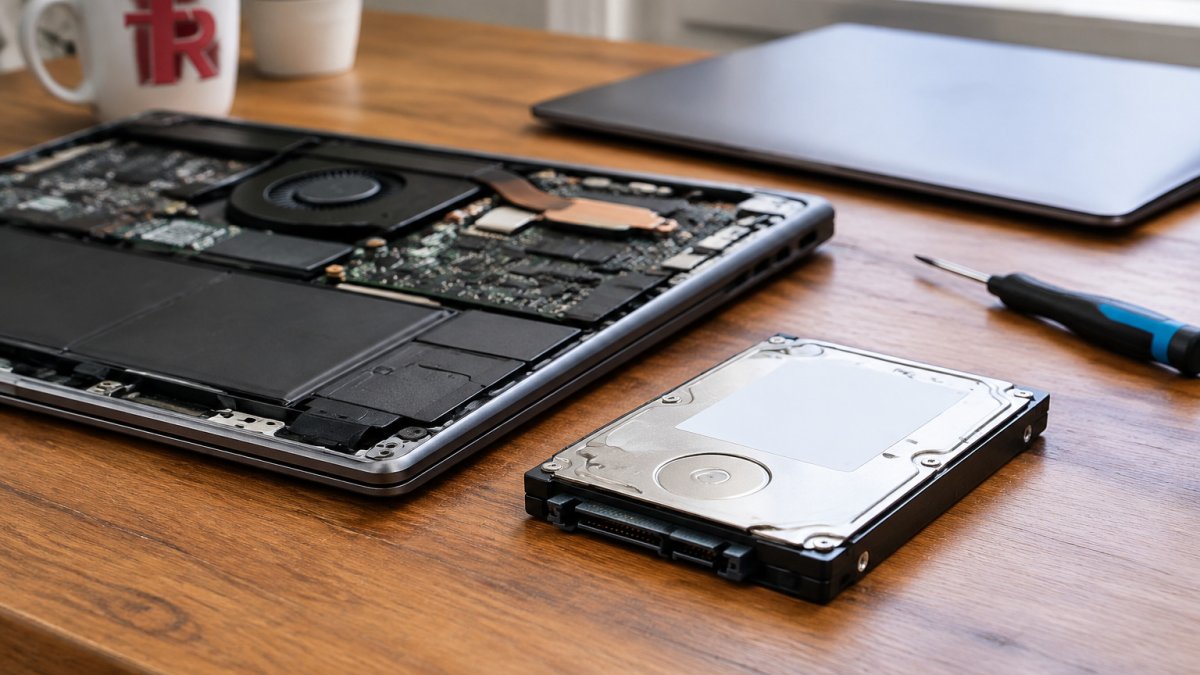
- Remove the drive from the laptop only if you feel confident doing so and the laptop is fully powered off. Many laptops are easy to open, but some are not, and opening a laptop can void its warranty.
- Connect the drive to another computer using a USB drive enclosure. Many people find this easier than opening the laptop.
- Check whether the other computer detects the drive. If it does not appear at all, the drive may have failed or the connection may be the problem.
If the drive is not detected, or you hear clicking, stop there. Do not keep reconnecting it. Get professional help to protect your data.
Back Up Your Files and Decide Your Next Step
Once you know the drive is struggling, your next step depends on what matters most.
If the drive still works but feels slow, you may choose to replace it with a new drive and move your files over.
For small businesses, downtime costs time and money. A quick diagnostic can help you decide whether to repair or replace the drive.
If you want help deciding, book a computer diagnostic test to have the drive checked properly. Owners dealing with work files may also find our small business computer repair guide useful, and Milwaukee-area readers can learn about in-home computer repair in Milwaukee before booking.
Frequently Asked Questions
How can I tell if my laptop hard drive is faulty?
The most common signs are a slow computer that gets worse over time, frequent freezing or crashes, files that won't open or go missing, and the drive not showing up at startup. Any of these can have other causes, such as too many startup programs or a software problem, so run quick checks before assuming the drive has failed. In Windows 11, you can start with the built-in disk check and drive health tools described above. If you notice clicking, grinding, or repeated failures to boot, stop using the laptop and back up what you can before doing anything else.
What is the average lifespan of a laptop hard drive?
Laptop hard drives often last several years, but there is no reliable single number that applies to every drive. Lifespan depends on how the laptop is used, how much it is moved or bumped, how hot it runs, and the quality of the drive. Mechanical drives with spinning platters are generally more sensitive to shocks than solid-state drives. Because failure can come without much warning, the safest habit is to keep a current backup regardless of the drive's age.
Can a laptop still work with a failing hard drive?
Sometimes, yes. A drive that is starting to fail may still run for a while, which is why people often miss the warning signs. However, continued use can make the damage worse and increase the chance of losing files. If your laptop is still working, copy your important files to an external drive or cloud storage first. Then limit heavy use until you have had the drive checked.
What should I do first if I think my laptop drive is failing?
Back up your most important files before you do anything else, because some checks and repairs can cause data loss. Avoid running disk repair tools on a drive that is clicking or failing repeatedly, since that can make recovery harder. Write down the symptoms you have noticed and when they started. If you are not comfortable copying files or running checks yourself, Tech Resurrection offers in-home help across Metro Milwaukee, and Daniel can walk you through the options.
