 Tech Resurrection
Last Updated: November 24, 2026
Quick Summary
A blue screen error usually clears with a simple restart, but if it keeps returning, write down the stop code before you touch anything. That code tells you whether the cause is a driver, a failing part, or a bad update, and it decides which fix you try first.
- Restart first and note the stop code, since most one-time blue screens clear on their own.
- If the same stop code appears every time, suspect one specific driver or part.
- If the code changes each time, suspect memory or heat instead.
- Run sfc /scannow in Command Prompt when Windows fails during startup.
- Back up your files before any repair, reset, or handing the PC to anyone.
Table of Contents
- How do I fix a blue screen error?
- How to Fix Blue Screen Windows 11: Safe First Checks
- Windows Stop Code Troubleshooting: Reading the Error
- Blue Screen Error Command Prompt Fixes for Startup Problems
- Blue Screen After Windows Update: Roll Back and Recover
- Hardware Checks: Memory, Storage, and Overheating
- Protect Your Files Before Any Repair or Reset
- When to Call Tech Resurrection for Blue Screen Help
- Frequently Asked Questions
How do I fix a blue screen error?
A blue screen error usually clears with a simple restart, but if it keeps coming back, the fix depends on what the stop code says and whether Windows can still start.
A blue screen error (often called the blue screen of death, or BSOD) is Windows shutting itself down on purpose when it hits a problem it can't safely continue past (Stop code error or bug check troubleshooting - Windows Client).
Below, we'll show you exactly how to work through it, from the safest first check to the point where it makes sense to call for help.
How to Fix Blue Screen Windows 11: Safe First Checks
Start with the simplest things. Most one-time blue screens clear after a normal restart, and no repair is needed.
Try these in order:
- Restart and watch. If Windows loads normally, note the time and move on.
- Write down the stop code. It looks like
CRITICAL_PROCESS_DIEDor0x000000EF. A photo with your phone works fine. - Undo recent changes. Unplug new printers, docks, or USB drives. Uninstall any program you added just before the crashes started.
- Check for updates. Go to Settings > Windows Update and install what's waiting.
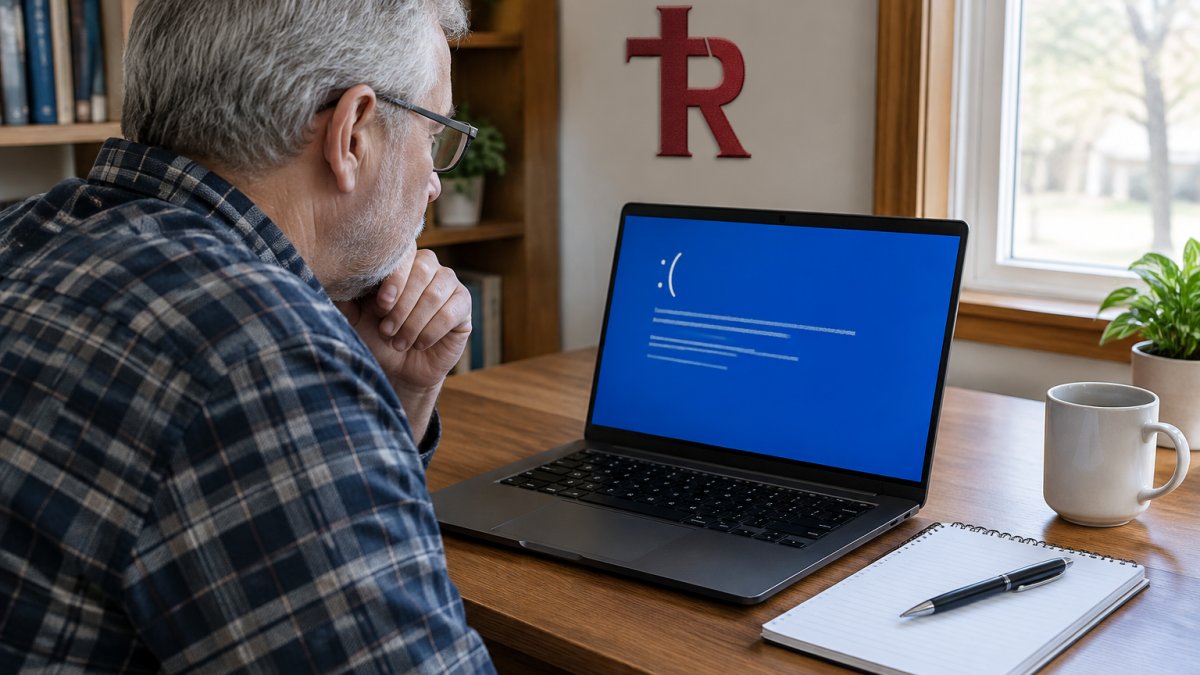
If the blue screen returns two or three times, stop restarting and move to the next section. Repeated crashes are a pattern, and patterns have causes.
Windows Stop Code Troubleshooting: Reading the Error
The stop code is the most useful piece of information on that blue screen. It names the category of failure, which narrows down the likely cause fast.
A stop code (Microsoft calls it a bug check code) is a short label Windows writes when it shuts down to protect your files. It usually appears in all capitals, sometimes with a hex number underneath, like 0x000000EF. The label and the number describe the same event.
What the common stop codes usually point to
Here is how to read the ones you are most likely to meet, and what each one suggests about the cause:
| Stop Code | Plain-language meaning | What it usually points to | First safe step |
|---|---|---|---|
| CRITICAL_PROCESS_DIED | A core Windows process stopped unexpectedly | Corrupted system files or a bad update | Run Startup Repair, then System File Checker |
| IRQL_NOT_LESS_OR_EQUAL | A driver touched memory it should not have | A device driver, often graphics or network | Update or roll back the most recent driver |
| MEMORY_MANAGEMENT | Windows found inconsistent memory | Faulty RAM or a bad update | Run Windows Memory Diagnostic |
| INACCESSIBLE_BOOT_DEVICE | Windows lost the drive it boots from | Storage drive, cable, or boot files | Check the drive and cables before anything else |
| KERNEL_SECURITY_CHECK_FAILURE | A security check inside Windows failed | Corrupted system files or a driver | Run System File Checker |
| PAGE_FAULT_IN_NONPAGED_AREA | Windows asked for data that was not there | Faulty RAM, a driver, or a failing drive | Run Windows Memory Diagnostic, then check the drive |
| SYSTEM_SERVICE_EXCEPTION | A background service crashed | A driver or a recently installed program | Undo recent changes, then roll back drivers |
| DPC_WATCHDOG_VIOLATION | A driver took too long to respond | Storage driver or firmware | Update the storage driver and check the drive |
A pattern matters more than a single code. If the same code appears every time, the cause is usually one specific driver or part. If the code changes each time, suspect memory or heat, because those faults surface in different places.
How to use the crash file
Windows saves a small crash file for each event. These minidumps live in C:\Windows\Minidump and record which driver or component was running when Windows stopped. You do not need to open them yourself.
If the folder is empty, the setting that saves crash files may be turned off.
Microsoft's bug check code reference lists every stop code and its cause if you want to look up one that is not in the table above.
Watch out: a stop code tells you the category, not the exact part. Do not buy new memory or a new drive based on a code alone.
Blue Screen Error Command Prompt Fixes for Startup Problems
When Windows will not start at all, the built-in recovery tools are your best bet. They are free, they are already on your PC, and they are safer than most downloads. Which tool to use depends on how the PC is failing, so pick the branch below that matches your situation.
First, reach the recovery menu
Start your PC and interrupt the boot three times by holding the power button for about five seconds each time, letting it begin to load before you cut power. On the third try, Windows opens the Windows Recovery Environment (WinRE), a menu of repair options. If your PC came with a recovery USB drive, you can also boot from that instead. Once WinRE is open, choosing the right repair option can get the PC back into service sooner, while VegaMSP offers practical ways to limit the disruption when business systems go down.
From the menu, choose Troubleshoot > Advanced options. The tools below all live there.
Branch 1: Windows starts, but crashes soon after
If you can still reach the desktop for a few minutes, do the least disruptive thing first. Open Settings > Windows Update > Update history and uninstall the most recent update, then restart. If the crashes began after you installed a program or a driver, remove that instead. This branch rarely needs the command line.
Branch 2: Windows crashes repeatedly and will not stay up
Use System Restore from the recovery menu. It rolls Windows back to an earlier restore point without touching your personal files. Pick a point from before the crashes started. This is usually the safest single step for a PC that keeps rebooting, because it undoes a change rather than repairing files in place.
Branch 3: Windows fails during startup and never reaches the desktop
This is where the command-line tools earn their place. From Advanced options, open Command Prompt and run these one at a time, waiting for each to finish:
sfc /scannowscans Windows for damaged system files and replaces them from a protected copy ((Article) SFC scannow). It is the standard first command for startup failures.chkdsk C: /fchecks the drive for file-system errors and fixes them. It may ask to schedule the check for the next restart, which is normal.bootrec /fixmbr,bootrec /fixboot, andbootrec /rebuildbcdrepair the boot records Windows needs to start. Run them only if the two commands above did not help, because they change how the PC boots.
Before you run any of these, back up your files if the PC will let you reach them at all. A repair can occasionally make a failing drive harder to read, and a backup taken first is the difference between a fix and a loss.
Watch out: do not run commands you found on a random forum. Some wipe drives or erase partitions, and the damage is often permanent. Stick to the commands named here, and if you are unsure what a command does, stop and ask before running it.
When the tools do not help
If Startup Repair, System Restore, and the commands above all fail, the problem is more likely hardware than software. Move to the hardware checks in the next section before you consider a reset, because a reset on a failing drive can cost you files. If the drive itself may be failing, our guide on what to do when a laptop won't boot covers the safe first steps to protect your files.
If you would rather not run recovery commands yourself, Tech Resurrection offers in-home help across Metro Milwaukee, and Daniel can walk through the recovery menu with you before anything is changed.
Blue Screen After Windows Update: Roll Back and Recover
A blue screen that appears right after an update is one of the easier problems to solve. The update is the recent change, so undoing it often fixes things.
Try this:
- Open Settings > Windows Update > Update history.
- Select Uninstall updates and remove the most recent one.
- Restart and see if the crashes stop.
If Windows won't stay up long enough to reach Settings, use System Restore from the recovery menu instead and pick a point from before the update.
For a driver that started crashing after an update, open Device Manager, right-click the device, and choose Properties > Driver > Roll Back Driver. This only works if a previous driver is still saved, so try it soon after the problem starts.
Hardware Checks: Memory, Storage, and Overheating
If software fixes don't stop the crashes, the cause is often a physical part. Three parts cause most repeat blue screens: memory, the storage drive, and heat.
Memory. Windows has a built-in test. Search for Windows Memory Diagnostic in the Start menu, run it, and let the PC restart. It reports errors when it finishes.
Storage. A failing drive can trigger INACCESSIBLE_BOOT_DEVICE or sudden crashes. Our guide on signs your laptop hard drive is failing walks through safe checks for both Windows and Mac.
Overheating. Dust-clogged fans and vents cause shutdowns that look like crashes. Shut down, unplug, and blow out the vents with compressed air.
Protect Your Files Before Any Repair or Reset
Back up your files before you run a repair, a reset, or hand the PC to anyone. This is the step people skip, and it's the one that matters most.
A simple approach:
- Copy your Documents, Pictures, and Desktop folders to an external drive or a cloud account.
- If the PC still starts, do this now, before anything else.
- If it won't start, don't reset it yet. Pulling files off a failing drive is often possible, but only before a reset.
Before you hand your computer to any shop, read up on how to avoid computer repair scams. Ask what will be done, get it in writing, and confirm your files are backed up first. At Tech Resurrection, no repair work starts without your approval, and we explain the problem before we touch anything.
When to Call Tech Resurrection for Blue Screen Help
Call for help when the blue screen keeps returning, when Windows won't start, or when you're worried about losing files. Those are the cases where a proper diagnostic saves time and money.
We're a good fit if:
- The same stop code keeps appearing after restarts.
- You've tried Startup Repair and Safe Mode with no luck.
- You suspect a failing drive or memory and want it confirmed.
- You'd rather not run recovery commands yourself.
Tech Resurrection offers in-home help across Metro Milwaukee, so Daniel can look at the PC where it sits. Here's what to expect from computer diagnostic services, and if you're local, what in-home computer repair looks like.
You can also check reviews from past clients on Yelp or Google Business Profile before you call.
A blue screen error is unsettling, but it's rarely the end of your computer.
Get started with Tech Resurrection and get a straight answer on what's wrong with your PC, with in-home service across Metro Milwaukee and no work done until you approve it.
Frequently Asked Questions
Should I be worried if my PC shows a blue screen?
One blue screen is usually not an emergency. It means Windows hit a problem it could not recover from and restarted to protect itself. Write down the stop code, restart, and see whether it happens again. If it repeats, especially at startup or during the same task, that points to a driver, update, or hardware issue worth diagnosing. Back up important files before you try any repair steps. A single random crash often clears up on its own, but repeated blue screens deserve attention.
Can a blue screen error mean my files are at risk?
The crash itself rarely damages files, but the steps people take afterward can. Resets, recovery options, and startup repairs can sometimes remove programs or settings. Before you run any recovery tool, copy important documents, photos, and business records to an external drive or cloud account. If the PC will not start at all, do not keep forcing restarts. Stop and get help so your data can be preserved before anyone attempts a repair.
How can I find the stop code from a blue screen?
The stop code appears near the bottom of the blue screen, often formatted like a word with underscores or a hexadecimal code such as 0x0000007E. It may only show for a few seconds, so photograph the screen with your phone. If the PC restarts too fast, open Event Viewer in Windows 11, go to Windows Logs, then System, and look for a recent critical error. That entry usually lists the bug check code. Write it down and mention it when you call for help.
When should I get professional help for a recurring blue screen?
Call for help when the blue screen returns after basic checks, when Windows will not start at all, or when the crash happens during the same task every time. Also get help if you are uncomfortable in Safe Mode or the recovery menu. A technician can test memory and storage, read crash dump files, and check for failing hardware. Tech Resurrection offers in-home help across Metro Milwaukee, explains the problem in plain language, and does no repair work without your approval.
