 Tech Resurrection
Last Updated: November 12, 2026
Quick Summary
A computer hardware upgrade often starts with a few free checks, because a slow computer is usually overloaded rather than broken. Back up your files first, then consider adding memory or replacing an old hard drive with an SSD. If you are unsure, a professional can help you move your files safely.
- Check Task Manager or Activity Monitor for programs using most of the processor or memory.
- Back up your files with File History or Time Machine before opening the case or installing parts.
- Aim for 8 GB of RAM as a minimum, and 16 GB if you keep many tabs open.
- Confirm your computer's memory type and slot count on the manufacturer's specification page before buying.
- Replacing an old hard drive with an SSD often gives a noticeable speed gain in startup and program loading.
Table of Contents
- Start With a Quick Check: Is Your Computer Slow or Just Tired?
- Back Up Your Files Before Anything Else
- How Much RAM Do I Need for Windows 11?
- SSD Upgrade for Older Computers: Pros, Cons, and What to Expect
- When to Do It Yourself and When to Call a Diagnostic Service in Milwaukee
- Frequently Asked Questions
Start With a Quick Check: Is Your Computer Slow or Just Tired?
A slow computer is usually not broken. Most of the time, it is overloaded, out of storage space, or running too many programs at once. Before you spend money on parts, try a few free checks that take about ten minutes.
Start with the Task Manager on Windows 11. Press Ctrl + Shift + Esc, then click the Processes tab. If one program is using most of the processor or memory, close it and see whether the computer speeds up. On a Mac, open Activity Monitor from the Applications > Utilities folder and look at the Memory and CPU tabs in the same way.
Next, check your storage. Open File Explorer on Windows and look at how full your drive is. If it is more than 90 percent full, the computer may slow down because it has little room to work. Clearing out old downloads and unused programs often helps.
Restarting also helps more than most people expect. Many slowdowns come from programs that stay open for days or weeks. A full restart clears them out.
If the computer is still slow after these checks, the cause may be older hardware, such as too little memory or a traditional hard drive. The sections below explain how to tell.
Back Up Your Files Before Anything Else
Before you open the case, install new parts, or change any settings, back up your files. A computer hardware upgrade rarely causes data loss, but a mistake during installation or a failing drive can make a bad situation worse. A backup protects you either way.
The simplest option on Windows 11 is File History, which you can find by searching for "Backup settings" in the Start menu. On a Mac, Time Machine does the same job. Connect an external drive and let it run. You can also copy your most important folders, such as Documents, Pictures, and Desktop, to an external drive or a cloud account like OneDrive or iCloud.
Check that the backup worked before you continue. Open a few files from the backup drive and confirm they look right. If you have photos or records that cannot be replaced, consider a second copy on another drive.
This step is also a good time to write down your passwords, email settings, and any software license keys you need later. If you are unsure how to do this safely, a professional can help you move your files without losing anything.
How Much RAM Do I Need for Windows 11?
Memory, or RAM (random access memory), is the short-term workspace your computer uses while programs are open. More RAM lets you keep more programs and browser tabs open at once without the computer slowing to a crawl.
Here is a practical way to think about capacity for everyday use:
| Installed RAM | What it handles well | Where it strains |
|---|---|---|
| 4 GB | Email, one browser tab, basic word processing | Video calls, several tabs, Windows updates |
| 8 GB | Web browsing, email, video calls, a few documents | Many tabs, photo editing, large PDFs |
| 16 GB | Several programs and many tabs at once, photo editing | Heavy video editing or gaming |
| 32 GB | Demanding creative work and heavy multitasking | Rarely needed for ordinary home use |
For most older adults doing email, browsing, video calls with family, and light document work, 8 GB is a reasonable minimum and 16 GB is comfortable for several years. If you keep many browser tabs open or edit photos, 16 GB is usually the better choice.
To see how much memory your computer has now, open Settings, then System, then About, and look for "Installed RAM." On a Mac, open the Apple menu, choose About This Mac, and read the Memory line.
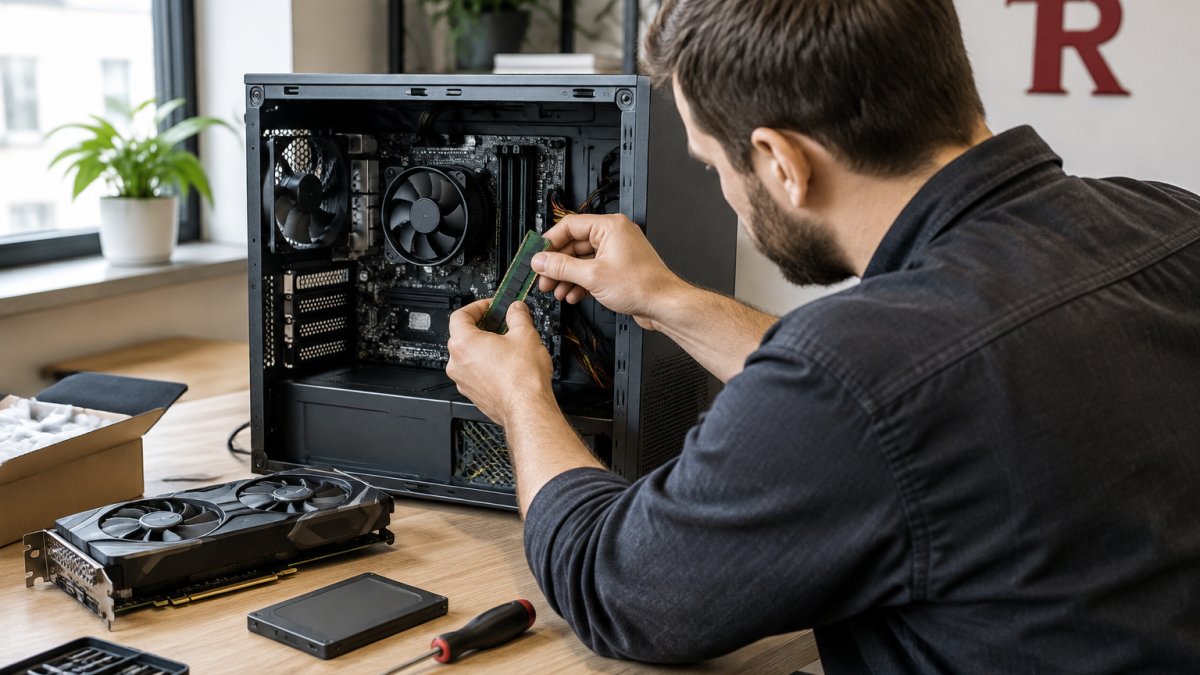
Before you buy, you need to know three things about your machine: how many memory slots it has, how many are already filled, and what type and speed of memory it takes. Most desktops and many laptops use DDR4 or DDR5 memory in SODIMM (laptop) or DIMM (desktop) form, and mixing types will not work. The manufacturer's specification page for your exact model lists the supported type, maximum capacity, and slot count. Once the right memory is installed, PHONEPROBS can help you consider other ways to make an older laptop feel more responsive.
Watch out: memory modules are keyed so they only fit one way. Never force a stick into the slot; if it does not seat with light pressure, stop and check the notch alignment.
A memory upgrade is often one of the more affordable computer hardware upgrades, and on many desktops it takes only a few minutes.
If you are not comfortable opening the case, or you are unsure which memory your computer takes, that is a good moment to get a second opinion. Tech Resurrection offers in-home help across Metro Milwaukee and can confirm compatibility before any part is ordered.
SSD Upgrade for Older Computers: Pros, Cons, and What to Expect
A solid state drive, or SSD, is a storage device with no moving parts. If you are not sure whether your drive is failing or just slow, see the signs and safe checks to run first.
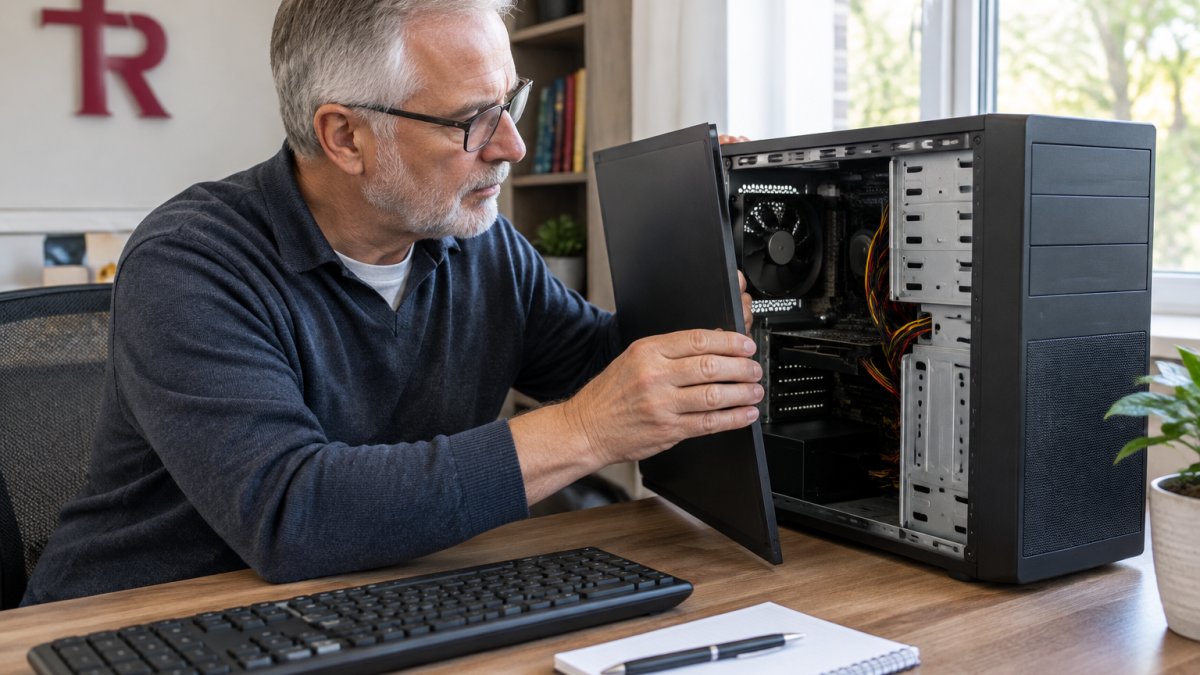
The main advantages are speed and reliability.
| Factor | What It Means |
|---|---|
| Speed gain | Often noticeable in startup, program loading, and file searches |
| Cost | Depends on capacity; larger drives cost more |
| Time | Usually an hour or more, including cloning your data |
| Best for | Computers still running a traditional hard drive |
| Less useful for | Machines with a very old processor or very little memory |
Before you buy, confirm which connection your computer uses. Step-by-step guidance on choosing compatible parts can help you match the right drive to your machine.
For capacity, 500 GB is a common starting point for a home computer, and 1 TB (1,000 GB) gives comfortable room for photos, documents, and programs.
The usual process is to connect the new SSD with a USB-to-SATA adapter, copy your existing system across with cloning software, then swap the drives. Cloning copies everything, Windows, programs, and files, so the computer starts up exactly as before.
Watch out: cloning overwrites the new drive completely. Make sure the backup described earlier is finished and verified before you start, and double-check that you have selected the new drive as the destination, not your existing one.
An SSD is not the only thing worth doing. Many older computers slow down because of dust clogging the cooling fins and a dried-out layer of thermal paste between the processor and its heatsink.
If opening the case or moving your system to a new drive feels like more than you want to take on, a professional can check compatibility and move your files safely.
When to Do It Yourself and When to Call a Diagnostic Service in Milwaukee
You can safely handle many tasks on your own. Running a virus scan with Windows Security, clearing out unused programs, restarting regularly, and checking storage space are all low-risk steps. Adding memory to a desktop computer is also manageable for many people, as long as the computer is unplugged and you follow the instructions for your model.
Some situations call for professional help. A framework for deciding whether to repair or replace can help you weigh the cost of fixing an old computer against buying a new one. If your computer makes clicking noises, will not start, shows repeated crash screens, or your files have disappeared, stop and get help before trying repairs. Continued use can make data loss worse. If you are not comfortable opening your computer or handling small parts, a technician can do the work for you.
Tech Resurrection offers in-home computer help across Metro Milwaukee, including Milwaukee, Franklin, Oak Creek, Greenfield, West Allis, Wauwatosa, Brookfield, and New Berlin. Learn what an in-home visit covers and how to prepare. The diagnostic trip charge and initial diagnostics are $40. No repair work is done without your approval, so you will know the cost before anything changes. Daniel Arfsten handles each visit directly, and is patient with people who are not comfortable with technology.
Frequently Asked Questions
What is a solid state drive (SSD) and why does it help older computers?
A solid state drive is a storage part with no moving pieces, unlike the spinning disk in an older hard drive. Because it reads and writes data electronically, programs and the operating system usually load noticeably faster. On an older computer still running a traditional hard drive, swapping in an SSD is often one of the most noticeable changes you can make. Your files can be moved over with a cloning tool built into most drive kits, and you should back up everything first in case something goes wrong.
How much memory (RAM) does a senior's computer actually need for Windows 11?
Windows 11 runs best with 8 GB of RAM, and 16 GB is a comfortable amount if you keep many browser tabs or programs open at once. Many people use a computer for email, video calls, and photos with 8 GB without trouble. To check your current amount, open Task Manager and look under the Performance tab. If you have 4 GB, adding memory is often a worthwhile and fairly inexpensive upgrade, but confirm the module type your computer accepts before buying.
Is it safe for a senior to perform their own computer hardware upgrades?
Many people can safely add memory or a solid state drive with patience and a few basic tools, but the inside of a desktop has parts that are easy to damage. Always shut the computer down, unplug it, and touch a bare metal part of the case before handling components. If you feel unsure about opening the case, or the instructions for your model are unclear, a professional can do the work for you. Asking for help is a sensible choice, not a failure.
Where can I get a computer diagnostic service in Milwaukee?
Tech Resurrection offers in-home and workshop diagnostics across Metro Milwaukee, including Milwaukee, Franklin, Oak Creek, Greenfield, West Allis, Wauwatosa, Brookfield, and New Berlin. A diagnostic visit helps identify whether a slow computer needs a memory or storage upgrade, cleanup of malware, or a different fix entirely. Current diagnostic and trip pricing is listed on the Tech Resurrection website, and no repair work is done without your approval.
