 Tech Resurrection
Last Updated: November 5, 2026
Quick Summary
To clean dust from a desktop PC safely, shut the computer down, unplug it, and ground yourself. Then open the side panel, clean the filters, fans, and heatsink with short bursts of air or a soft brush, and avoid the power supply. Plan to clean dust desktop pc hardware about twice a year.
- Back up your important files before touching any hardware.
- Hold fan blades still while blowing air so they do not spin freely.
- Rinse plastic mesh filters and let them dry fully before reinstalling.
- Never open the power supply, since it holds charge after unplugging.
- A household vacuum is not safe inside a PC because it builds static.
Table of Contents
- Why Dust Builds Up in a Desktop PC and Why It Matters
- Tools You Need to Clean Dust From a Desktop PC
- Preparing Your Computer and Yourself Before You Start
- Step-by-Step: How to Clean Dust Out of Your PC Safely
- Cleaning Dust Without Compressed Air and Whether Vacuuming Is Safe
- How Often to Clean a PC and Booking Help When You Need It
- Frequently Asked Questions
Why Dust Builds Up in a Desktop PC and Why It Matters
Dust is one of the most common reasons a clean dust desktop pc setup ends up slowing down, getting loud, or shutting off without warning.
That layer acts like a blanket. It traps heat, and the fans have to spin faster to keep up.
Dust is usually a slow problem, not a sudden one. The good news is that a careful cleaning often fixes it.
Tools You Need to Clean Dust From a Desktop PC
You do not need expensive gear to clean dust desktop pc hardware. Most of what you need is probably already in your home.
- A screwdriver to open the side panel
- A can of compressed air or an electric duster
- A soft, dry microfiber cloth
Keep the work area clear and well lit. A table near a window works well. Avoid carpet if you can, since it builds up static electricity.
Preparing Your Computer and Yourself Before You Start
Safety comes first. Take a few minutes to get ready, and your cleaning will go much smoother.
- Back up your important files. Cleaning is usually safe, but backing up is smart before you touch any hardware.
- Shut the computer down completely. Do not just put it to sleep.
- Unplug the power cord from the back of the PC and from the wall.
- Press the power button for a few seconds to drain any leftover power.
- Touch a metal part of the case to release static electricity from your body.
If you are not comfortable opening your computer, that is completely okay. In-home help from Tech Resurrection across Metro Milwaukee can do this for you, and you can learn more about what in-home computer repair looks like before you decide.
Step-by-Step: How to Clean Dust Out of Your PC Safely
Work slowly, keep the parts you touch to a minimum, and stop if anything feels stuck or brittle. Before you begin, back up your important files, cleaning is usually safe, but a backup is the one step that protects you if something goes wrong.
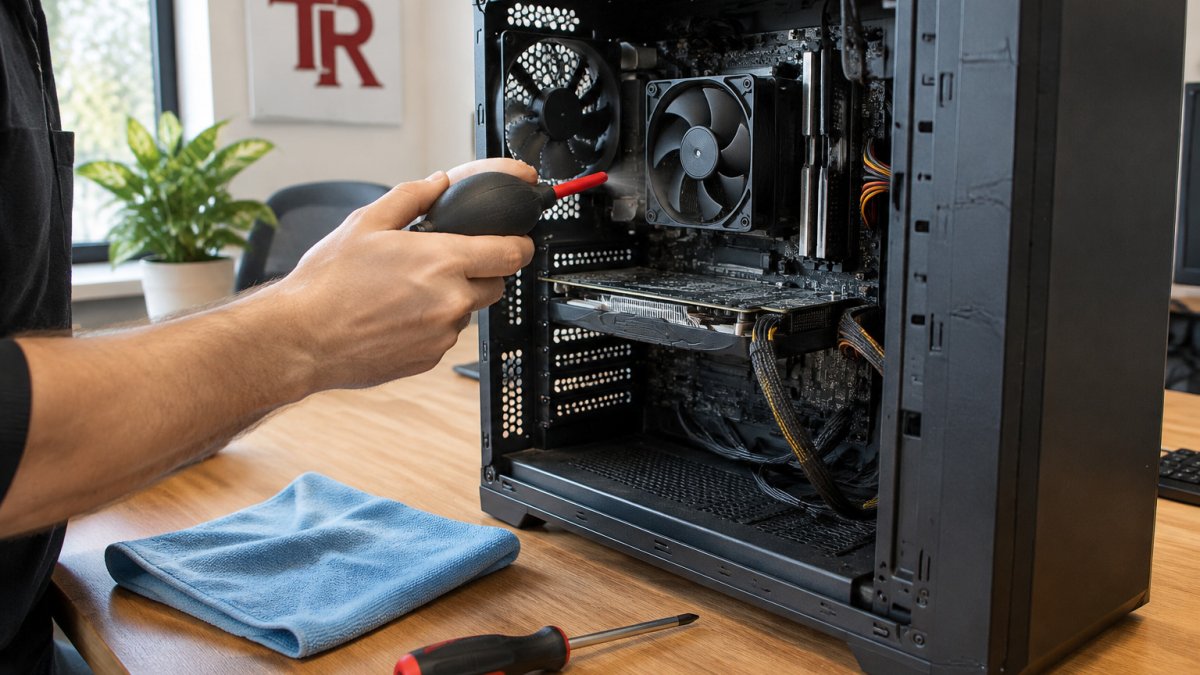
- Set up your workspace. Use a hard, well-lit table rather than carpet, which builds up static electricity. Keep the PC on the table, not on the floor.
- Shut down and unplug. In Windows 11, click Start, then the power icon, then Shut down. On a Mac, choose Apple menu > Shut Down. Unplug the power cord from the back of the PC and from the wall.
- Drain leftover power. Press and hold the power button for about five seconds. This releases residual charge stored in the power supply and motherboard.
- Ground yourself. Touch an unpainted metal part of the case, or clip on an anti-static wrist strap if you have one. Do this again any time you walk away and come back.
- Remove the side panel. Most cases use two thumbscrews at the back. Slide or lift the panel off and set it aside.
- Photograph the inside first. A quick phone photo of the fan and cable layout gives you a reference if anything gets bumped.
- Clean the filters first. Pull out the front and bottom dust filters. Plastic mesh filters can be rinsed in water and must dry completely before going back in. Never reinstall a damp filter.
- Work from the top down. Dust the upper parts of the case first so loosened debris falls toward the bottom, where you can wipe it up last.
- Clean the case fans. Hold each blade still with a finger or a pencil, then use short bursts of air across the blades and out through the vents. Wipe the outside grills with a dry microfiber cloth.
- Clean the CPU heatsink and its fan. A heatsink is the metal fin stack that pulls heat off the processor. Brush loosened dust out of the fins with a soft paintbrush, then blow short bursts through them. Do not press the brush into the fins, they bend easily.
- Clean the graphics card carefully. Support the card with one hand while you dust its fan and heatsink with the other. Do not let the card flex, and do not spray air directly into the slot where it plugs into the motherboard.
- Stay out of the power supply. The power supply is the metal box the power cord plugs into. Do not open it, it holds charge even after unplugging. Clean only its exterior vents with short bursts of air from a few inches away, and never insert anything through the vents.
- Leave storage drives alone. Hard drives and solid-state drives need no internal cleaning. Wipe the outside of the drive bays only, and never spray air into a hard drive's breather hole.
- Wipe the case interior. Use a dry microfiber cloth on the case walls and rails. Cotton swabs work for tight corners around the front panel.
- Reassemble and test. Reinstall the filters and side panel, reconnect the power cord, and turn the computer on. Listen for normal fan spin-up and confirm it reaches the desktop or login screen.
Watch out: Never let a can of compressed air spray at a tilt or upside down, it can release liquid propellant onto your parts. Keep the nozzle a few inches from any component and use short bursts, not a continuous stream.
Cleaning Fans and Vents Without Spinning Them
Fans are the most important part to clean well, but they can be damaged if they spin freely while you blow on them.
Hold the fan blades gently in place with a finger or a pencil tip. Then blow short bursts of air across the blades and out through the vents.
If a fan sounds rough or wobbly after cleaning, a replacement is often cheap and easy to install.
Checking Your Work After Cleaning
Once the PC is back together, a few quick checks tell you whether the cleaning went well. Listen at startup: fans should spin up briefly and then settle to a steady, quieter hum.
In Windows 11, open Task Manager with Ctrl+Shift+Esc and check the Performance tab for CPU temperature if your hardware reports it.
The core cleaning steps break down as follows, with the time or frequency noted for each.
| Step | What to do | Time or frequency |
|---|---|---|
| Set up workspace | Use a hard, well-lit table, not carpet | Before starting |
| Shut down and unplug | Shut down, then unplug power cord from PC and wall | Before starting |
| Drain leftover power | Press and hold power button | About five seconds |
| Ground yourself | Touch unpainted metal part of case | Each time you return to work |
| Clean filters | Rinse plastic mesh filters, dry fully | Before reinstalling |
| Clean case fans | Hold blades still, blow short bursts | Before reassembly |
| Clean CPU heatsink | Brush and blow through fins gently | Before reassembly |
| Reassemble and test | Reinstall panel, power on, listen for normal fan spin-up | After cleaning |
Cleaning Dust Without Compressed Air and Whether Vacuuming Is Safe
Not everyone has compressed air on hand, and that is fine. You can clean your PC without it, and in some cases a non-air method is the safer choice.
Compressed Air Versus an Electric Duster
A can of compressed air is the most common tool, but it has tradeoffs. Cans get cold as they discharge, and tilting one can spit liquid propellant onto your parts.
An electric duster, a small handheld blower that plugs into the wall or charges over USB, avoids the propellant and the cold-spray problem. It usually costs more up front but lasts for years.
Cleaning With a Brush and Cloth
If you have neither air tool, a soft, dry paintbrush and a microfiber cloth will do the job. Brush dust loose from fan blades, heatsink fins, and case walls, then wipe it up with the cloth. Work slowly and avoid pressing hard on any parts. Cotton swabs help in tight corners around the front panel and fan grills.
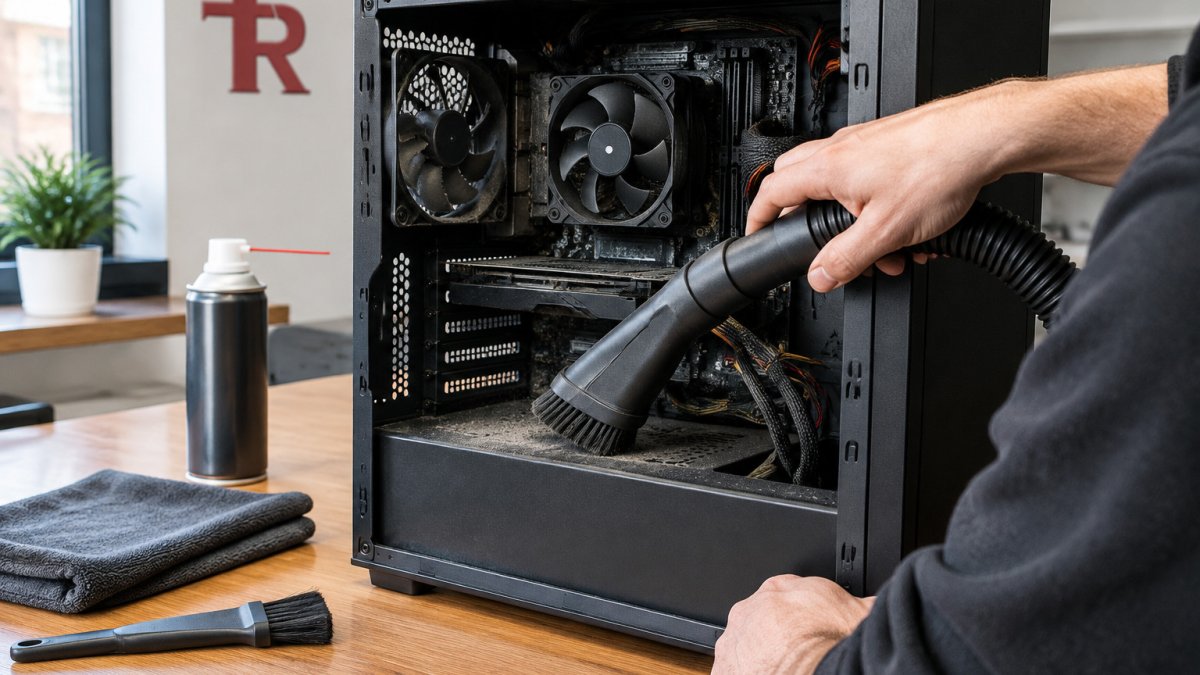
Is a Vacuum Cleaner Safe Inside a PC?
A regular household vacuum is not a good choice for the inside of your PC.
A small handheld vacuum with a soft brush attachment, used gently and never directly on circuit boards, is a safer option for the case floor and exterior vents.
Watch out: Never use a wet cloth or spray cleaner inside the case.
If you would rather not open the case yourself, in-home help from Tech Resurrection across Metro Milwaukee can handle the cleaning and check for dust-related overheating at the same time.
How Often to Clean a PC and Booking Help When You Need It
For most homes, cleaning a desktop PC every six months keeps dust under control. Pet owners, smokers, and people who run their PC in a dusty room may need to clean it every three months.
Watch for signs that your computer needs attention now. These include loud fans, a machine that feels hot, random shutdowns, or slowdowns while doing simple tasks.
If you would rather not open the case yourself, or the cleaning did not solve the problem, a computer diagnostic service can check for dust-related overheating and other causes.
Frequently Asked Questions
Is it safe to vacuum dust out of a PC?
A household vacuum can be used carefully, but it is not the safest option for a desktop PC. Vacuums can build up static electricity and can knock loose small parts or bump circuit boards. Many people use a brush attachment held a few inches away, or an electric duster made for electronics, instead. Always power the computer off, unplug it, and avoid touching the components directly while you work. If you are unsure, a professional cleaning is a reasonable choice.
How do I clean dust from a PC without compressed air?
You can clean dust from a PC without compressed air by using a soft, dry brush or a clean microfiber cloth to loosen dust from the fans, vents, and case surfaces. A small electric duster made for electronics is another option that avoids the propellant residue that canned air can leave behind. Work slowly, keep the computer unplugged, and wipe away dust that lands on the case rather than pushing it deeper inside.
How often should I clean dust from my desktop PC?
Many people clean a desktop PC every three to six months, and more often in homes with pets, smokers, or carpeting, where dust builds up faster. A quick check of the intake filters and vents every month or so can show whether it is time for a full cleaning. If the computer sounds louder than usual or runs hotter, that is often a sign it is due for cleaning sooner.
Should I hold PC fans still while cleaning them?
Yes, it is a good idea to hold a fan still while you blow or wipe dust from it. Spinning a fan with air or a cloth can strain its bearings and can even make it spin backward, which may damage it. Use a short burst of air or a soft brush to clean the blades, and hold the fan blade gently in place with a finger or a cotton swab while you work.
