 Tech Resurrection
Last Updated: November 26, 2026
Quick Summary
Start by testing another device in the same spot. If your phone is slow too, the cause is usually the router, the signal or the internet service. If only your Windows PC is slow, look at its Wi-Fi driver, background apps and malware first.
- Test a second device in the same spot to see whether the PC or the network is the problem
- Restart the modem and router, and compare Wi-Fi with a wired cable if you can
- Check Task Manager, the Wi-Fi driver and a Windows Security scan for PC-side causes
- Router placement, interference and old equipment are common network-side causes
- If the problem covers the whole house or keeps coming back, in-home troubleshooting makes sense
Table of Contents
- Troubleshooting slow wifi on Windows: is it the PC or the network?
- Eight fixes to try, in order
- 1. Test another device in the same spot
- 2. Restart the modem and router
- 3. Move closer, or try a cable
- 4. Restart Windows and look for background hogs
- 5. Update the Wi-Fi driver
- 6. Run the network troubleshooters, then reset the network if needed
- 7. Scan for malware with Windows Security
- 8. Improve router placement and reduce interference
- Reading the results: PC, router, or home network?
- Home network problems that settings can't fix
- When to call someone local, and what I do on a visit
- Frequently Asked Questions
If you're troubleshooting slow wifi on Windows, the quickest first step is to test another device in the same spot. If your phone is slow too, the cause is usually the router or the internet service. If only your PC is slow, the cause is usually on the computer itself. Below are eight free checks, in order, with a plain explanation of why each one matters.
Troubleshooting slow wifi on Windows: is it the PC or the network?
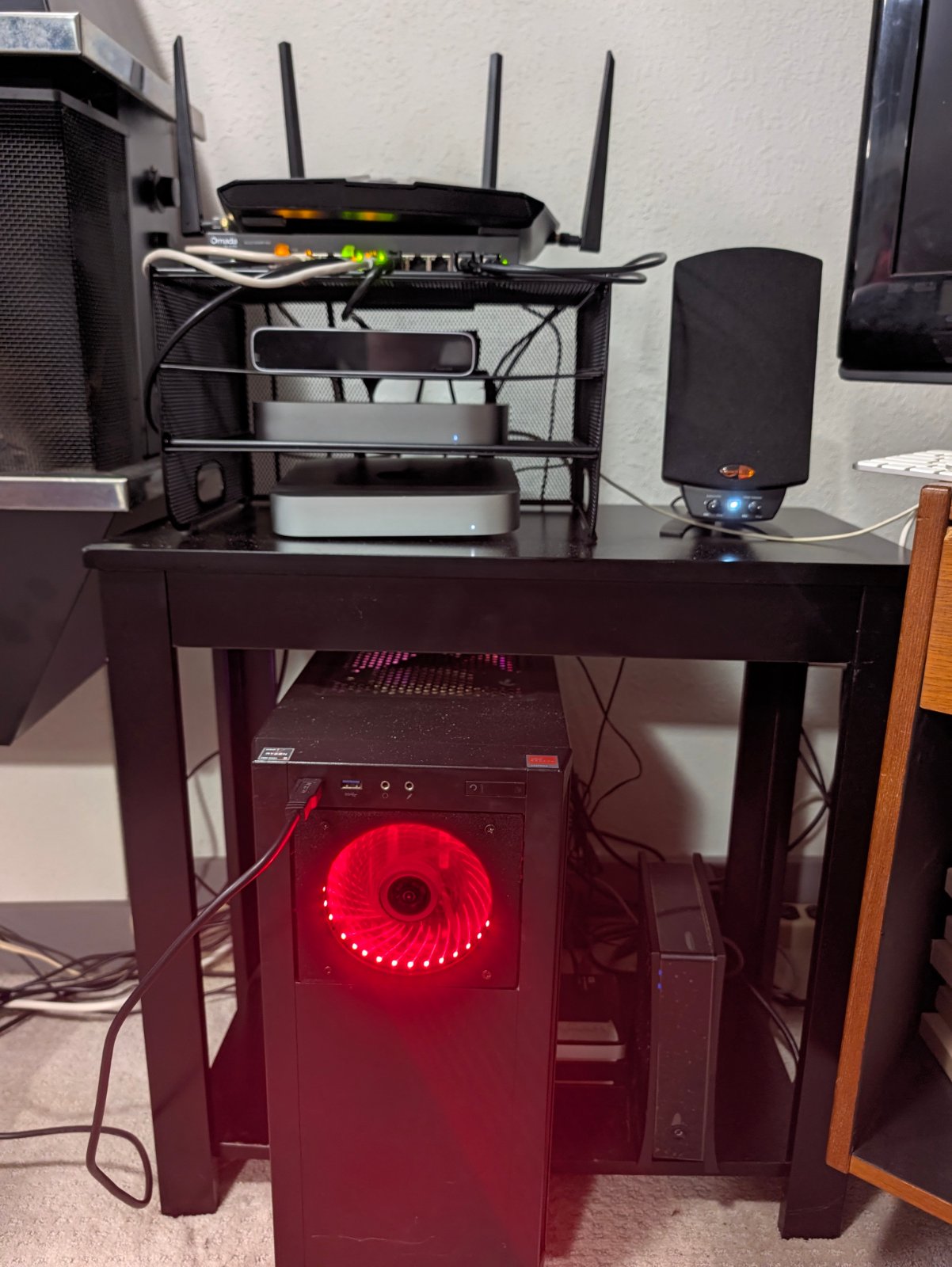
Your internet passes through several links before it reaches your screen. The modem is the box that brings the internet into your home from your provider. The router is the box that turns that connection into your home Wi-Fi. Some providers combine the two into one device. Then there is the wireless signal itself, and finally the Wi-Fi adapter inside your PC, the small part that listens for that signal.
Slowness can come from any one of these links. The first few fixes below show you which link is the weak one, so you don't spend an hour changing settings on a computer that was never the problem.
Eight fixes to try, in order
1. Test another device in the same spot
Sit exactly where the slow PC sits and try a phone or tablet on the same Wi-Fi. Load a video or run a free online speed test on both. If the phone is fast and the PC is slow, the problem is probably on the PC. If both are slow, the problem is probably the router, the signal or the internet service.
This one check saves the most time, because it tells you which half of this article to focus on.
2. Restart the modem and router
These boxes are small computers, and like any computer they can get bogged down after weeks or months of running. A proper restart often clears this up.
- Unplug the power from the router and the modem (or the one combined box).
- Wait about 30 seconds so the internal parts fully power down.
- Plug the modem in first and wait a few minutes until its lights settle.
- Plug the router in and give it a couple more minutes to start up.
- Reconnect your PC and test again.
3. Move closer, or try a cable
Carry the laptop to the same room as the router and test again. If it speeds up a lot, distance or walls are the issue. If your PC has an Ethernet port (the wider, phone-jack-looking socket), plug it into the router with a network cable and compare.
Key Takeaway
If the wired connection is fast but Wi-Fi is slow, your internet service is probably fine. The weak spot is the wireless signal, which points toward router placement, interference or the PC's Wi-Fi adapter.
4. Restart Windows and look for background hogs
Choose Restart from the Start menu rather than Shut down. In Windows 11, Shut down can keep part of the system saved between sessions, while Restart starts fresh. Then check what is using your connection:
- Press Ctrl + Shift + Esc to open Task Manager.
- On the Processes tab, click the Network column heading to sort by what is using the most.
- Look for large uploads or downloads, such as cloud backup, file syncing, Windows updates or a game download.
- If something is clearly hogging the connection, let it finish, or pause it from inside that program.
A PC quietly uploading a large photo library can make everything else feel slow, even though nothing is wrong. If you don't recognize a busy program, don't end it just because it's high on the list. Many of these are normal parts of Windows.
5. Update the Wi-Fi driver
A driver is the small piece of software that lets Windows talk to a piece of hardware, in this case your Wi-Fi adapter. An outdated or glitchy driver can cause slow speeds or dropped connections. The safest route is to let Windows handle it:
- Open Settings, then Windows Update, then Advanced options, then Optional updates.
- If you see Driver updates, expand it and look for your Wi-Fi or wireless adapter.
- Install it, then restart the PC.
If the slowness began right after a driver change, right-click the Start button, choose Device Manager, expand Network adapters, double-click your Wi-Fi adapter, open the Driver tab and try Roll Back Driver if it's available.
Watch Out
Don't install a 'driver updater' program or download drivers from random sites. These are a common way for junk software and malware to get onto a PC. Windows Update, or the PC maker's own support page, is the safer source.
6. Run the network troubleshooters, then reset the network if needed
Go to Settings, then System, then Troubleshoot, then Other troubleshooters, and run Internet Connections and Network Adapter. They won't solve everything, but they sometimes catch a stuck setting.
If problems continue, Windows has a Network reset under Settings, Network & internet, Advanced network settings. It puts your network settings back to their defaults, which can clear up odd problems left by old software or a past change.
Watch Out
A network reset makes Windows forget every saved Wi-Fi network and password, and it removes VPN settings. Have your Wi-Fi password in hand first, and find out how to set up your work VPN again if you use one. Your files are not deleted, but it's a good habit to back up important files before changing system settings.
7. Scan for malware with Windows Security
Malware is unwanted software that can run in the background and use your connection. Open Windows Security from the Start menu, choose Virus & threat protection, and run a Quick scan. It's built into Windows and is a reasonable first check. Ignore any pop-up that tells you to call a number or install a cleaning program, since those are usually scams.
If the scan finds something it can't remove, or the PC also behaves strangely in other ways, that's a good time to get help rather than keep clicking.
8. Improve router placement and reduce interference
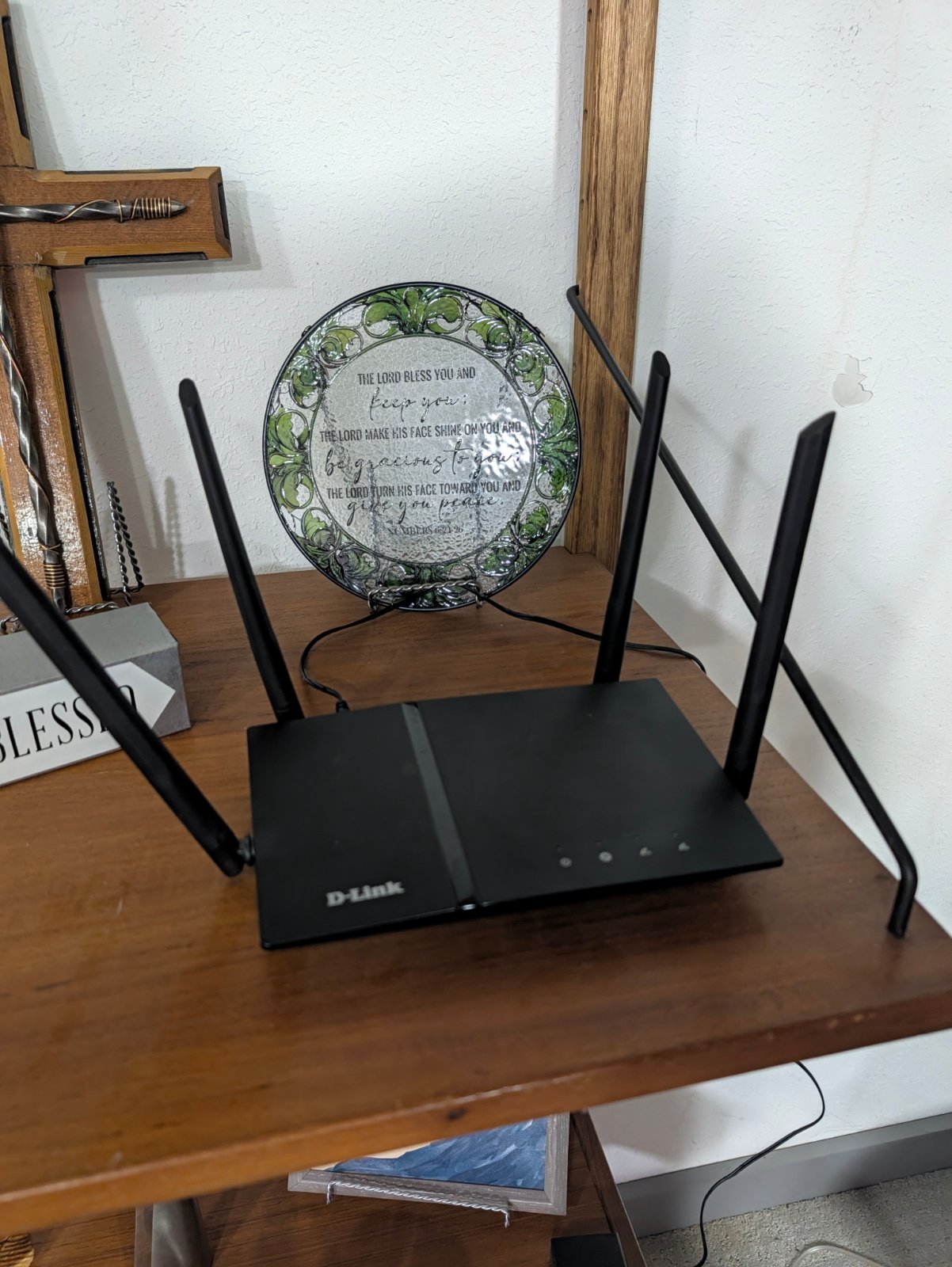
Wi-Fi signal weakens as it passes through walls, floors and large objects. A router tucked in a basement corner, a closet or behind a TV often struggles to reach the rest of the house. A few simple changes often help:
- Place the router in a central, open spot, ideally up off the floor.
- Keep it away from microwave ovens, cordless phone bases and baby monitors, which can interfere with the signal.
- Avoid putting it inside a cabinet or right next to large metal objects or mirrors.
- If your router offers both 2.4 GHz and 5 GHz networks (two radio channels, often shown as separate Wi-Fi names), try 5 GHz when you're fairly close. It's usually faster but doesn't reach as far. 2.4 GHz travels farther but is slower and more crowded.
In Windows 11, the properties page for your network under Settings, Network & internet, Wi-Fi often shows which band you're connected to.
Reading the results: PC, router, or home network?
Once you've tried a few of these, match what you saw to the table below.
| What you notice | Most likely area | What to try next |
|---|---|---|
| Only this PC is slow; phone is fine beside it | The PC: driver, background apps, malware | Fixes 4 to 7 |
| Every device is slow, even with a cable | Modem or internet service | Restart, then contact your provider |
| Cable is fast, Wi-Fi is slow on every device | Router, signal or interference | Fix 8, and consider the age of the router |
| Fast near the router, slow in certain rooms | Dead zone (a spot the signal barely reaches) | Move the router or change the setup |
| Slow mostly in the evening | Many devices busy at once, or busy provider network | Check what else is using the connection |
| One PC keeps dropping off Wi-Fi | Driver or adapter | Fix 5, including Roll Back Driver |
If the PC is slow at everything, not just online, Wi-Fi may be a side issue. My article on whether a slow computer is worth repairing can help you decide what to do next.
Home network problems that settings can't fix
Sometimes you can do everything right and the Wi-Fi is still weak. That usually means the equipment or layout is the limit.
- Old equipment. A router that is many years old may struggle with the number of phones, TVs, tablets and smart devices in a modern home.
- Dead zones. Houses with brick, plaster or several floors often need the signal delivered differently.
- Weak extenders. A range extender repeats the router's signal. It can reach more rooms but often cuts speed along the way.
- Loose or damaged cables. A worn network cable or loose connector can cause slowdowns that look like Wi-Fi trouble.
- A tangled, unlabeled setup. When nobody remembers what each cable and box does, it's hard to fix anything safely.
Pro Tip
Resist the urge to buy a new router before you've tested. If a wired connection is also slow, a new router usually won't help, because the problem is upstream. Test first, then spend.
When to call someone local, and what I do on a visit
It makes sense to get help when:
- Every device in the house is slow or unreliable, and restarting only helps briefly.
- Certain rooms have little or no signal.
- The problem keeps coming back after you've tried the checks above.
- You run a small office where slow Wi-Fi affects printers, shared files or customers.
- You'd rather not change network settings yourself, or you're worried about losing saved settings or files.
I'm Daniel, and Tech Resurrection does Wi-Fi and home networking in person across Metro Milwaukee. On a visit I check the router and the signal strength in the rooms where you have trouble. If the router is in a poor spot, I may be able to move it. If the equipment is the limit, I'll explain your options for upgrading. I also label and tidy cables so the setup makes sense to you later.
The trip charge and diagnostics are $40.00. After I diagnose the problem, I explain what I found and what the repair will cost. No repair work is done without your approval, and installations get a cost estimate before work starts. If something isn't worth fixing, I'll tell you instead of charging to try.
To see how a visit works, read what to expect from in-home computer repair in Milwaukee. For a broader look at pricing, see how much computer repair costs in Milwaukee. When you're ready, you can send me a message through the contact form.
Frequently Asked Questions
Why is my Wi-Fi slow on one computer only?
When only one computer is slow and other devices are fine in the same spot, the cause is usually on that computer. Common reasons are an outdated Wi-Fi driver, a program using the connection in the background, or malware. Work through the Task Manager, driver and Windows Security checks above.
Why is my Wi-Fi slow on my laptop but fast on my phone?
Laptops and phones use different Wi-Fi adapters and may connect to different bands. A laptop's driver may also be out of date, or its connection settings may have gotten stuck. Try restarting Windows, updating the driver through Windows Update, and moving closer to the router to see if the speed changes.
Does restarting the router really help?
Often, yes. A router is a small computer that can slow down or get confused after running for a long time. Unplug it for about 30 seconds, plug it back in, and give it a few minutes to start. If the slowness returns quickly, the cause is probably something else.
Can a virus make my Wi-Fi slow?
It can. Malware sometimes uses your internet connection in the background, which leaves less for everything else. Run a Quick scan in Windows Security, and get help if it finds something it can't remove or the PC acts strangely in other ways.
How do I know if I need a new router?
Test with a wired cable first. If the wired connection is fast but Wi-Fi is weak in many rooms on every device, the router's age, placement or coverage may be the limit. If the wired connection is slow too, a new router probably won't fix it.
Slow Wi-Fi is frustrating, but the cause can usually be found with a few careful checks. If you'd rather have someone look at it in person, I help homes and small businesses across Metro Milwaukee. Call me at (414) 499-0038 or send a message through the contact form, and you'll reach me directly.