 Tech Resurrection
Last Updated: October 25, 2026
Quick Summary
A macbook running slow is usually caused by a nearly full startup disk, too little free memory, too many background apps, or a pending software update. Check your free space and Activity Monitor first to find which resource is maxed out before changing any settings.
- Keep at least 10-15% of the drive free, and never let it drop below about 20 GB.
- Memory Pressure in red means macOS is swapping to disk, a real performance problem.
- Quit apps with Command-Q, since clicking the red dot only closes the window.
- Post-update slowness is usually temporary while macOS reindexes files and rebuilds caches.
- Random restarts or Disk Utility errors it can't repair point to a hardware fault.
Table of Contents
- Start Here: A Symptom-Based Diagnostic Flow for a Slow Mac
- Low Storage and Startup Disk Space: The Most Common Reason a MacBook Runs Slow
- How to Check CPU Usage on Mac and Read Activity Monitor
- Too Many Open Apps, Browser Tabs, and Background Processes
- How to Clear Cache on Mac and Manage Login Items
- MacBook Running Slow After Update: What Changed and What to Do
- Apple Silicon vs Intel: Where the Fixes Differ
- When a Slow MacBook Means a Hardware Problem
- Frequently Asked Questions
Start Here: A Symptom-Based Diagnostic Flow for a Slow Mac
If your MacBook is running slow, the cause is usually one of a few things: a full startup disk, too little free memory, too many background apps, or a pending software update.
At Tech Resurrection, we've spent over three decades diagnosing machines that "just got slow." People jump straight to reinstalling macOS when the real problem is a startup disk with almost no free space.
So here's how we think about it. A slow MacBook is a symptom, not a diagnosis. Your job is to find out which resource is maxed out before you touch a single setting.
Match Your Symptom to the Likely Cause
Use this table to narrow things down before you start fixing.
| Symptom | Most Likely Cause | First Check |
|---|---|---|
| Slow all the time, fans loud | Low free disk space or heavy background apps | Storage tab in System Settings |
| Sluggish right after login | Too many login items | Login Items list |
| Slow only in the browser | Too many tabs or extensions | Browser task manager |
| Slow since the last update | Spotlight indexing or app updates | Activity Monitor |
| Freezes and restarts | Possible hardware fault | Disk Utility and console logs |
Most people skip this step. Don't. Ten minutes of diagnosis saves an hour of random clicking.
Low Storage and Startup Disk Space: The Most Common Reason a MacBook Runs Slow
A nearly full startup disk is the single most common reason a MacBook runs slow. When free space drops too low, macOS has less room to manage memory swaps and temporary files, and everything crawls.
Apple's own support guidance points to low startup-disk space as a top cause of sluggish performance. The fix isn't glamorous, but it works. Keep a healthy cushion of free space and the system breathes again.
Why Free Space Actually Matters
It helps to understand the mechanism, because it explains why "just delete some files" sometimes doesn't help.
- Swap: When RAM fills up, macOS writes inactive memory to disk. That swap file needs free space. On a nearly full drive, swap can't grow, so the system has to compress memory harder and performance drops.
- Snapshots: Time Machine and macOS keep local APFS snapshots that can hold onto space even after you delete files. The space shows as used until the snapshot is thinned.
- Purgeable space: macOS reports some space as "purgeable", it's reclaimable, but only when the system needs it. A drive that looks full may have more headroom than the bar suggests, or less.
That's why the number you see in Storage isn't always the number that matters.
How to Measure Free Space Accurately
Open System Settings, go to General, then Storage. Read the bar, but also click the info icon next to the categories to see the breakdown. For a second opinion, open Finder, select your startup disk, and press Command-I to see Capacity, Available, and Purgeable side by side.
How to Free Up Storage on Mac
Here's the order we'd work in, from safest to most involved:
- Empty the Trash and any Downloads folder clutter
- Move large video and photo files to an external drive
- Clear old iOS device backups in Finder
- Remove apps you never open
- Use the built-in Storage recommendations in System Settings
- Offload desktop files you don't need daily
- Check for local Time Machine snapshots if space still looks wrong
Check your numbers first. If the bar is nearly full, this is your problem.
If Space Still Looks Wrong After Cleaning
If you've deleted files but Storage still shows the drive as full, local snapshots are the usual reason. You can check them in Disk Utility by enabling "Show APFS Snapshots" from the View menu, but deleting them is best left to Time Machine's own thinning or a restart. A restart alone often clears temporary files and lets macOS reclaim purgeable space.
How to Check CPU Usage on Mac and Read Activity Monitor
To check CPU usage on Mac, open Activity Monitor from Applications, then Utilities (or press Command-Space and type "Activity Monitor"). The CPU tab shows which processes are eating your processor, sorted by percentage.
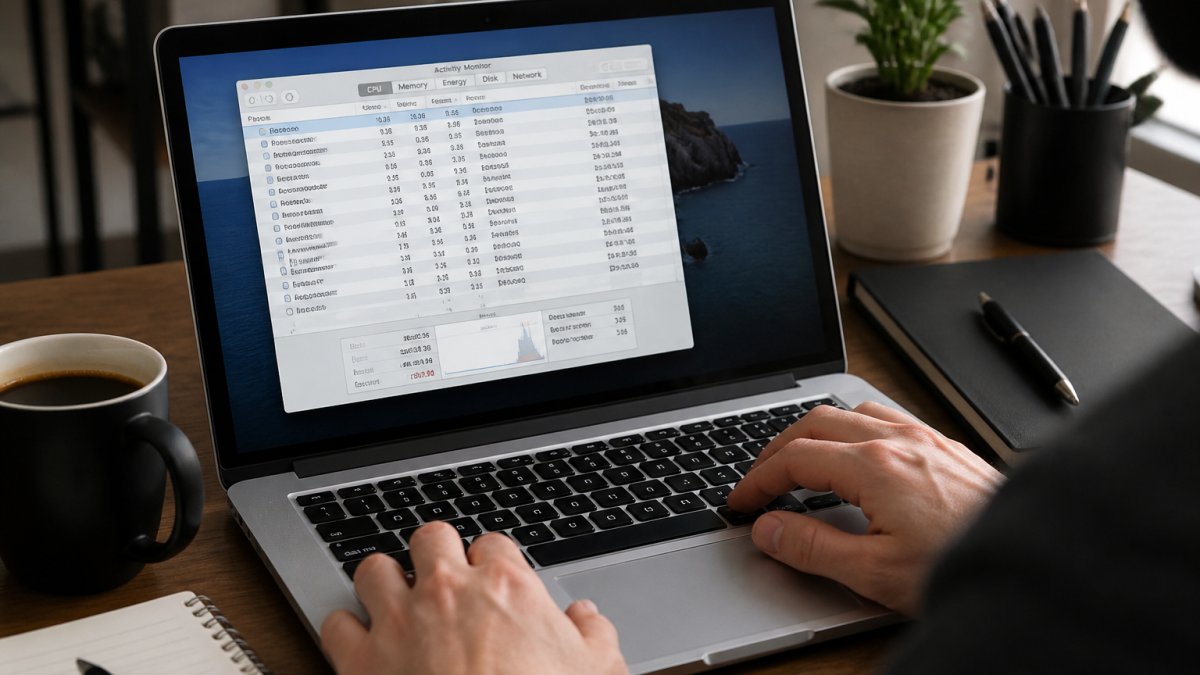
Most guides stop at "open Activity Monitor and look." That's not enough. The value is in reading the numbers correctly, so here are practical thresholds you can act on.
Reading the CPU Tab
- % CPU column: A single process sitting above roughly 100% for more than a minute or two is usually a runaway app or a stuck helper. A browser with many tabs can legitimately hit 200-400% across its helper processes; that's load, not a bug.
- System vs. User: High System time with low User time often points to a driver, kernel extension, or background service, not the app you're staring at.
- Idle %: If idle stays above about 70% while the machine feels slow, the bottleneck probably isn't the CPU. Look at memory and disk instead.
Reading the Memory Tab
The Memory tab is where most people get lost. Ignore the raw "Memory Used" number at first and look at the Memory Pressure graph at the bottom.
- Green: RAM is keeping up. Slowness is coming from somewhere else.
- Yellow: The system is compressing memory and starting to work harder. Expect stutters when switching apps.
- Red: macOS is swapping to disk. This is a real performance problem, and it gets worse on Macs with a nearly full startup disk because swap needs free space.
Below the graph, check Swap Used. A small amount (a few hundred MB) is normal. Swap that climbs into the gigabytes while pressure stays red means you're genuinely short on RAM for what you're running, and no amount of cache clearing will fix it.
Reading the Energy Tab
The Energy tab matters most on a MacBook running on battery. It shows Energy Impact, which estimates how much power each process is drawing. A process with high energy impact but low CPU is often waking the machine repeatedly in the background, which drains battery and can make the whole system feel sluggish. The 12 hr Power column helps you spot an app that's been quietly sipping power all day.
What to Do With What You Find
- Quit the single high-CPU process, then watch whether the number drops.
- If memory pressure stays red after quitting heavy apps, reduce what runs at once rather than chasing a phantom fix.
- If nothing looks high but the machine is slow, move on to storage and startup items; the bottleneck is elsewhere.
A common pattern is that people see one scary-looking process name and assume it's malware. Most of the time it's a normal background service. Check the process name against the app it belongs to before acting.
Too Many Open Apps, Browser Tabs, and Background Processes
Every open app and browser tab holds memory, and background processes keep working even when you're not looking. Close what you're not using and performance often improves within seconds.
Start with the browser, since it's usually the biggest offender:
- Close tabs you haven't touched in an hour
- Remove browser extensions you don't recognize
- Clear the browser cache occasionally
- Quit apps with Command-Q instead of just closing the window
That last one catches people constantly. Clicking the red dot closes the window, not the app. The app keeps running in the background, using resources.
How to Clear Cache on Mac and Manage Login Items
To clear cache on Mac, remove the files inside your user Library's Caches folder, or let macOS rebuild them by restarting. For login items, open System Settings, go to General, then Login Items, and remove anything you don't need starting at boot.
A few practical notes:
- Clearing cache is safe, but apps rebuild it, so it's a temporary gain
- Login items are the real win for slow startup
- Remove startup apps you don't recognize, but check what they are first
Watch out: don't delete system folders you don't understand. Clearing cache is fine; deleting the wrong Library folder is not.
MacBook Running Slow After Update: What Changed and What to Do
A MacBook running slow after an update is usually temporary. macOS reindexes files, rebuilds caches, and finishes background setup for a day or two after a major update. Give it time and a restart before you panic.
If it's still slow after a few days, work through this:
- Restart the Mac to finish pending setup
- Check Activity Monitor for a process stuck at high CPU
- Update your apps, since old apps can misbehave on new macOS versions
- Check for another pending macOS update
The thing nobody tells you about updates is that the slowdown is often the system doing housekeeping, not a broken install. Patience fixes more post-update slowness than any setting.
Apple Silicon vs Intel: Where the Fixes Differ
Apple silicon Macs and Intel Macs share most fixes, but they differ in a few key places. Apple silicon runs cooler and more efficient, so loud fans and heat point to a specific app. Intel Macs run hotter and are more prone to thermal throttling under load.
Here's where it matters:
- Apple silicon: watch for one app pinning a core; memory is shared, so memory pressure tells the story
- Intel: heat and fan noise often mean throttling, so check for dust and heavy background tasks
- Both: storage, login items, and browser habits affect both the same way
If you're coming from an older Intel Mac, expect the Apple silicon machine to feel different under load. It usually stays quiet until you really push it.
When a Slow MacBook Means a Hardware Problem
Sometimes a slow MacBook is a hardware warning, not a software one. If performance drops alongside freezes, restarts, or disk errors, stop troubleshooting software and get the hardware checked.
Signs to take seriously:
- Random restarts or kernel panic messages
- Disk Utility reporting errors it can't repair
- A drive that's full but shows missing space
- Fans running hard at idle with nothing open
These point to a failing drive, failing memory, or overheating. Software fixes won't solve them, and continuing to push the machine can make it worse.
A common mistake is assuming a slow Mac always needs a new computer. Often it needs a diagnosis first. That's exactly how we work at Tech Resurrection: we check before we recommend, and no repair happens without your approval.
Frequently Asked Questions
How do I find out what is slowing down my Mac?
Open Activity Monitor from Applications > Utilities and sort the CPU and Memory tabs by percentage. The apps at the top are using the most resources. Check the Memory Pressure graph at the bottom: green means memory is fine, yellow or red means your MacBook is short on RAM and swapping to disk. Also check System Settings > General > Storage to see how much free disk space remains. Those three checks usually point to the cause within a few minutes.
Can low storage make a MacBook run slowly?
Yes. macOS needs free space on the startup disk for virtual memory, temporary files, and updates. When storage drops below roughly 10 percent free, the system has less room to work and performance drops noticeably. Clearing large files, old downloads, and unused apps often restores normal speed. If a MacBook running slow has a nearly full drive, freeing space should be your first fix before anything else.
How do I clear my cache on my Mac?
Start with browser caches, since they grow fastest. In Safari, go to Settings > Privacy > Manage Website Data and remove stored data. In Chrome, open Settings > Privacy and security > Clear browsing data. For system caches, open Finder, choose Go > Go to Folder, and enter ~/Library/Caches, then delete files inside folders for apps you recognize. Avoid deleting the folders themselves. Restart afterward so macOS rebuilds what it needs.
When should I get a slow MacBook checked by a repair professional?
Book a diagnostic if the basics, freeing storage, closing background apps, clearing caches, and restarting, do not help. Other signs: the fan runs loud constantly, the case gets hot under light use, the Mac restarts on its own, or the slowdown started suddenly with no software change. Those can point to a failing drive, worn battery, or thermal problem. A technician can test the hardware and tell you whether a repair is worth it before you spend on a new machine.
A slow MacBook is rarely a mystery once you know where to look. Match the symptom, check storage and memory, trim the background clutter, and give updates time to settle. When the signs point to hardware, get a real diagnosis before spending money on guesses. Get started with Tech Resurrection and get a clear answer on what's actually slowing your Mac down.
